
Setting check-in and check-out times
Where you set arrival and departure times, what happens to existing bookings when you change them, and which times apply as long as nothing is saved.
Updated on November 7, 2026
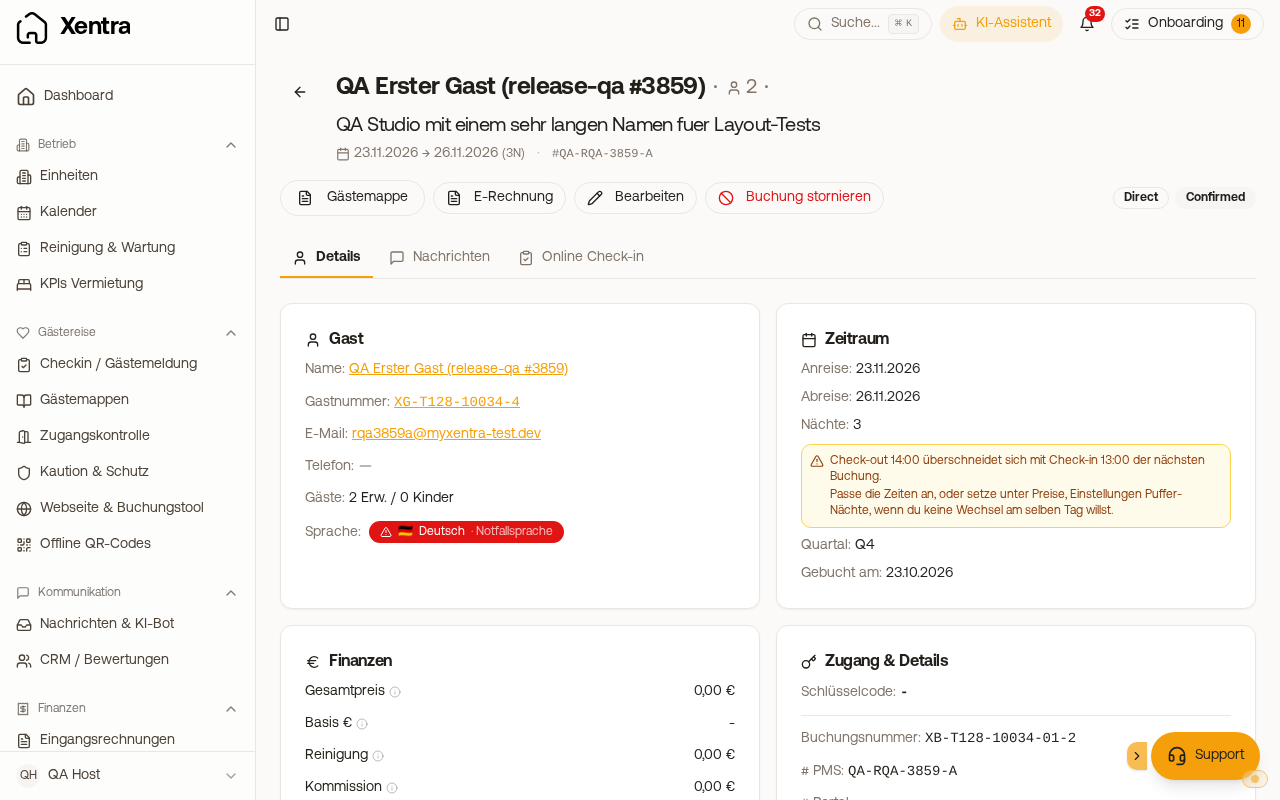
There is exactly one place
You set check-in and check-out times under Access Control → Settings tab → Default access times. The two fields there are called Check-in from and Check-out until. Not in the units, not in the check-in hub.
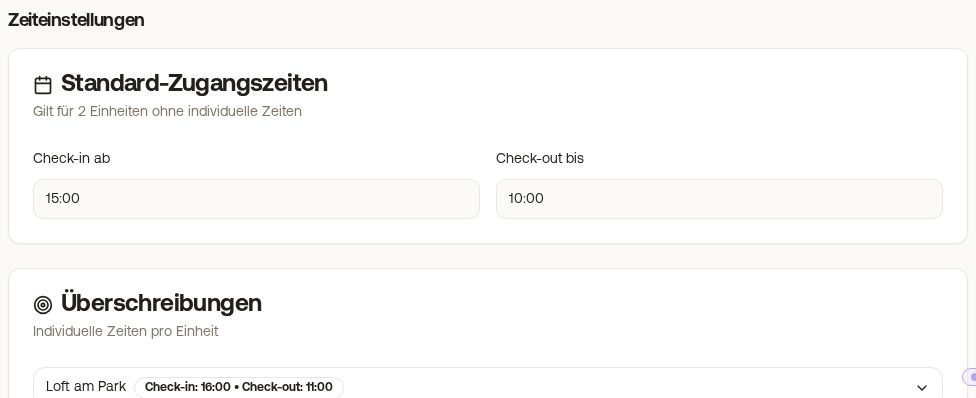 Default access times and overrides in the Settings tab
These times determine when door codes and access links are valid, when scheduled messages go out, what appears in {{arrival_time}} and {{departure_time}} (door times exact: {{access_from_time}} and {{access_until_time}}), from when sections of the guest guide become visible, and which time the AI bot mentions.
Can't find "Access Control"?
Then the Access Control module is not active in your account. The page is then completely hidden, even if you do not use any locks at all.
- Open Module Overview in the sidebar.
- Turn on Access Control.
- Access Control appears in the sidebar under Guest Journey → Settings tab → Default access times.
Default times and overrides
At the top, you set the times that apply to all units (for example 15:00 arrival and 10:00 departure). Below, it shows how many units they apply to.
Units that deviate from this are created below under Overrides: Add override, select unit, set times, Create. A unit without an override always follows the default times. With Remove override, the unit falls back to the default times.
Xentra asks when saving
If an affected unit has upcoming bookings, Xentra asks when saving (also when creating or removing an override): Which bookings should the new times apply to? You see how many upcoming bookings are affected, how many already have a door code, and for how many the code has already been sent to the guest.
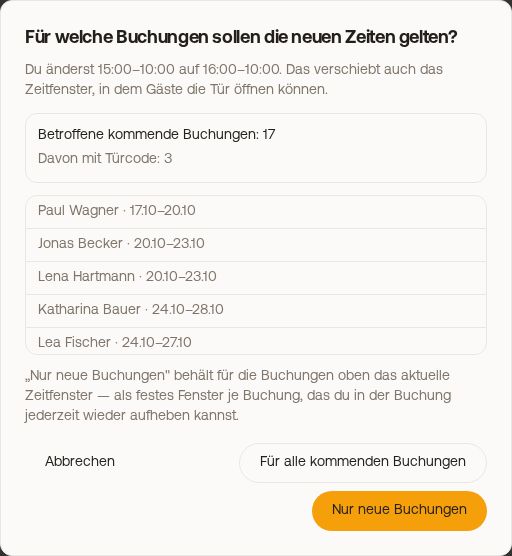 Confirmation prompt when changing times: for all upcoming or only new bookings
- For all upcoming bookings: Door codes, access links, and guest guide align with the new times. A stay that has already started keeps its times.
- Only new bookings: Upcoming bookings keep their previous time window. Xentra saves it on each booking as a custom time, which you can remove again in the booking at any time.
- Bookings where you have already manually set a custom time remain unchanged in both cases.
- igloohome: There, the PIN is calculated from the time window. New times mean a new PIN, so the guest's old code is no longer correct. You send them the new code using the placeholder for the door code.
You can see the time period of an access link in the booking under the Door access card under Access links and change it there via the pencil icon on the link. If the guest has booked an additional service that shifts the door access, their link keeps this time window even with For all upcoming bookings.
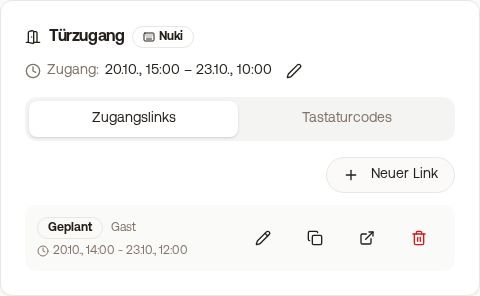 Door access card with access time period and access link for a booking
A time on the unit alone is not enough
This is the most common cause of incorrect times. A time saved on the unit itself is only evaluated if the unit is listed here as an override. If it is only on the unit, the default time still applies, and it does not appear in the list of overrides. If you see 14:00 / 12:00 even though something else is set on the apartment, enter the time above as a default time or below as an override.
Older time fields elsewhere (for example in the pricing area), the description of a unit, or your website are also not evaluated by Xentra for this purpose.
As long as nothing is set, 14:00 / 12:00 applies
If nothing is entered under default access times, Xentra calculates door codes, access links, and messages using 14:00 arrival and 12:00 departure. This is the reason if a code is valid earlier than your actual arrival time.
The AI bot mentions the same time
The bot reads the times from the default access times including your overrides. If you have never saved anything there, it does not mention a time at all and tells the guest it will check with the host. So it does not sell 14:00 / 12:00 to the guest as your time.
If an FAQ, your house rules, or your bot instructions state a different time, the bot still follows the settings. The Bot settings show the contradiction as a warning along with affected accommodations. If it arises when saving (creating, changing, or activating an FAQ, changing times), you also receive the notification "Contradiction in check-in times" in the bell and by email, only once for the same contradiction. You can turn it off under Settings, Notifications at "Contradiction in check-in/check-out times". The bot is still allowed to offer early check-in or late check-out.
Quick cross-check
Open an upcoming booking and look at the Door access card: There you will find the access time period with date and time. If it says 14:00 / 12:00 even though you expect something else, the entry in the default access times or the override for this unit is missing.
Under arrivals and departures, the Dashboard shows the door time of the respective booking. If you changed the access time period of an individual booking in the Door access card, you will see exactly that time there.
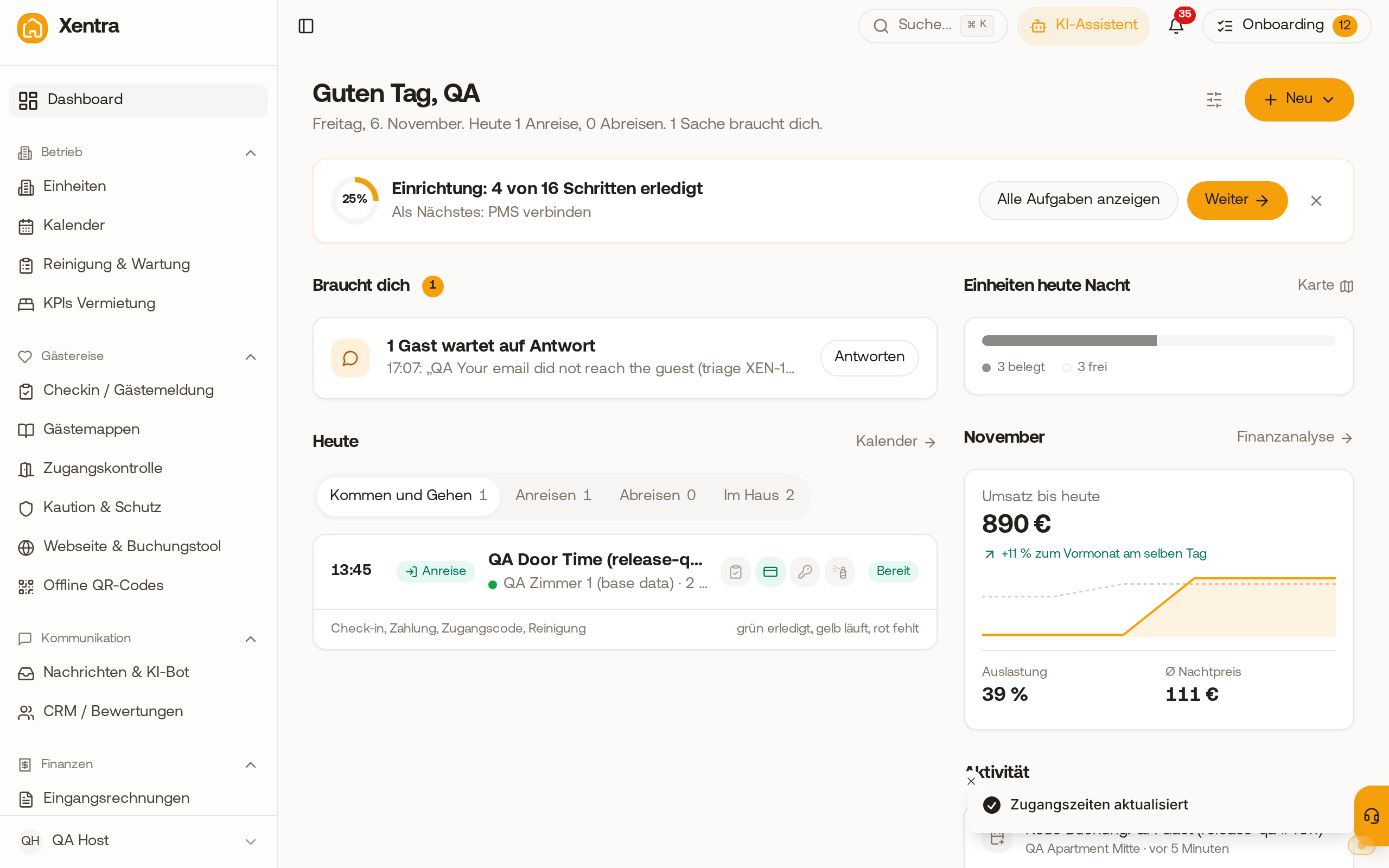 On the dashboard under Today, arrival shows the door time you set on the booking.
Setting an individual booking differently (earlier in, later out, booked additional services): see Access time period of a booking and visibility of the access link.
These times also apply in online check-in: If you ask for arrival or departure time there, you can restrict the selection in the field with "Limit the selection" to your check-in or check-out window, see Setting up the check-in form: guest data, fields, and redirection.
Turnaround on the same day
Warning and notification when check-out and check-in overlap on the same day: see Turnaround on the same day: time overlap between check-out and check-in.