
Access Control: Overview and setup
Which locks Xentra supports, how you connect providers and assign devices, what the six tabs of Access Control do, and what reaches the guest.
Updated on November 12, 2026
Under Guest Journey → Access Control, you connect your smart locks, key boxes, and intercoms with Xentra. The page is called Entrance control at the top and has six tabs: Devices, Entrances, Bookings, Log, Settings, and Appearance.
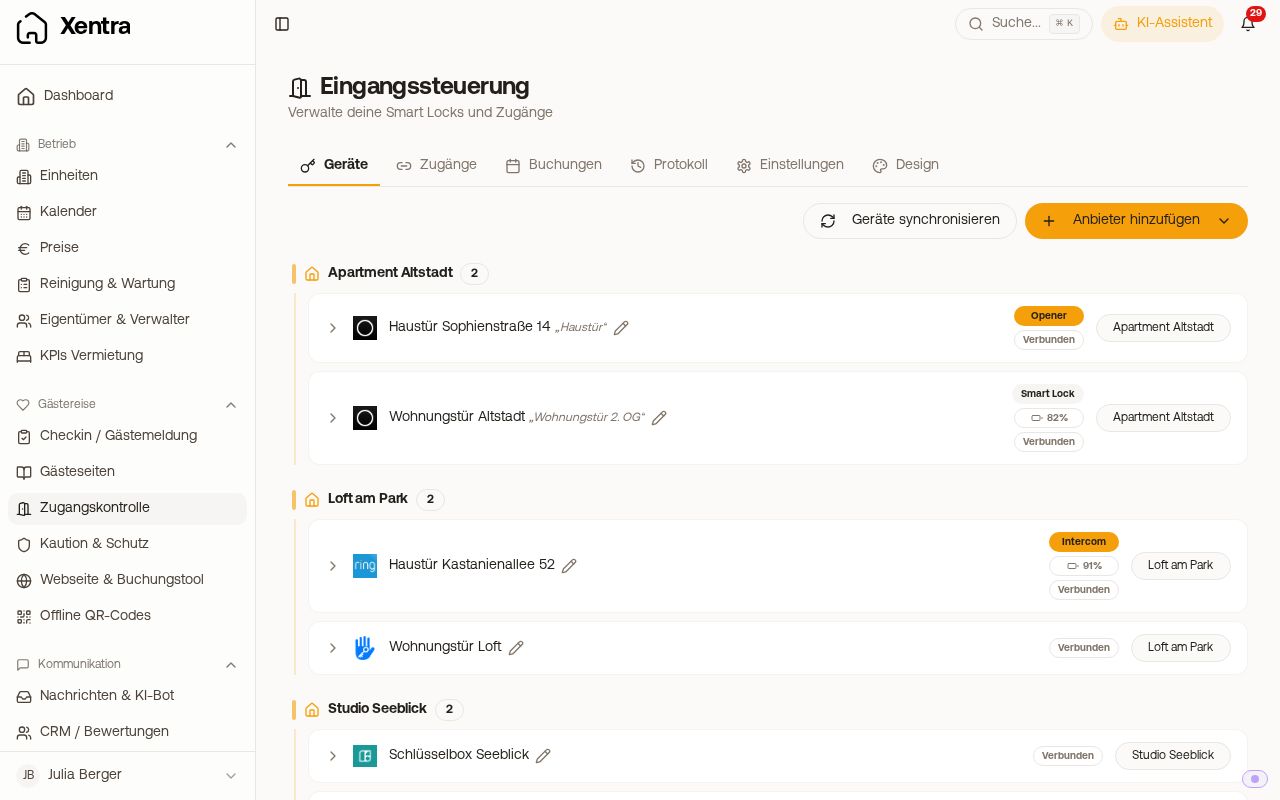 Devices tab of Access Control with connected locks and their units
Supported providers
| Provider | What Xentra does with it |
|---|---|
| Nuki (Smart Lock, Opener, Keypad) | Open doors via access link, door code per booking on the keypad |
| TTLock | Open doors via access link, door code per booking |
| Tedee (bridge only) | Open doors via access link, door code per booking on the keypad |
| igloohome | PIN per booking, works offline directly on the lock. There is no open button in the access link |
| Ring (intercom, doorbell) | Open front door via access link |
| SwitchBot (Lock, Bot) | Open doors via access link or have the button pressed |
| Salto | Open doors from within Xentra. No door codes, no open button in the guest's access link |
| LivionKey (key cabinet) | PIN per booking for the compartment with the room key. There is no open button in the access link |
| masunt (key safe) | PIN per booking for the compartment with the key, open compartment via access link |
Locks from Yale, August, or Schlage cannot be connected. If your device is not listed, write to us at hello@support.myxentra.com.
Setup in four steps
- Check module: If "Access Control" is missing in the sidebar, enable the module under Module Overview.
- Connect provider: Settings tab (or Devices) → Add Provider → select provider and enter the login details. You do not need a device or lockbox ID: Xentra fetches your devices automatically after connecting. You will see a device's ID later when you expand it in the Devices tab.
- Assign devices: Devices tab → tap No unit on the right of the device and select the unit. It is saved as soon as you close the selection.
- Done: From now on, every booking for this unit automatically receives an access link and, for locks with a keypad, a door code.
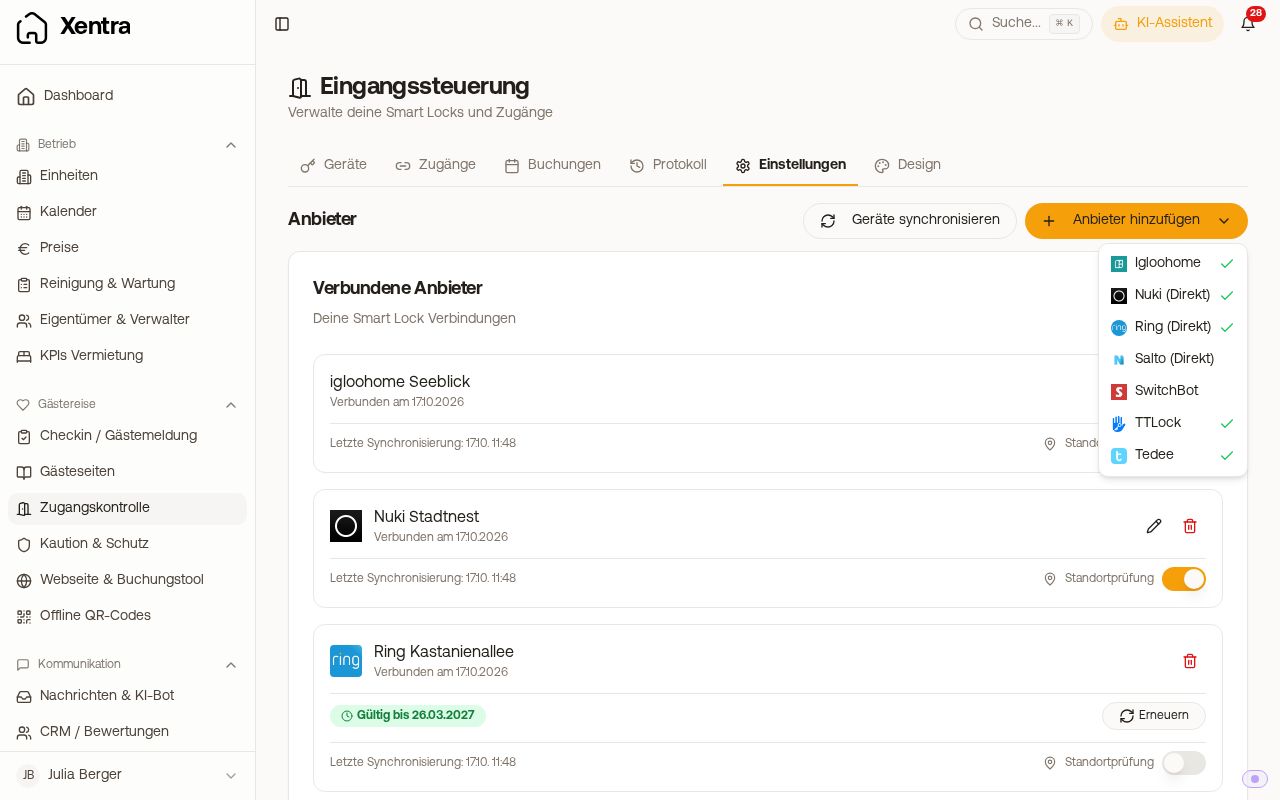 Add Provider menu in the Settings tab
One front door for multiple apartments: In the Devices tab, tap the unit selection next to the device and check all apartments behind this door. Afterwards, the device displays, for example, "3 units". The guests of each of these apartments then also get access to the front door, and a door code ends up on all doors of their unit.
Paired a new lock? Click Sync Devices (Devices or Settings tab). Xentra also automatically syncs the battery level and status once a day.
The tabs at a glance
- Devices: all locks, grouped by unit, with battery, assignment to units, and, when expanded, the functions of the provider (open, keypad, activities). With the pencil next to the name, you set what the door is named for guests.
- Entrances: access links without a booking, such as for cleaning, craftspeople, or yourself.
- Bookings: upcoming bookings from iCal calendars with check-in and check-out time. Here you copy their access link or change their time. Bookings via Airbnb, Booking.com, or a PMS are not listed here: You can find their access link in the booking on the Door access card.
- Log: who opened which door and when, for Nuki and Tedee also inputs directly on the keypad.
- Settings: providers, location check (geo check), default access times, access only after completed check-in, and the visible functions in the access link.
- Appearance: look of the access page, note for guests, and Google Maps link.
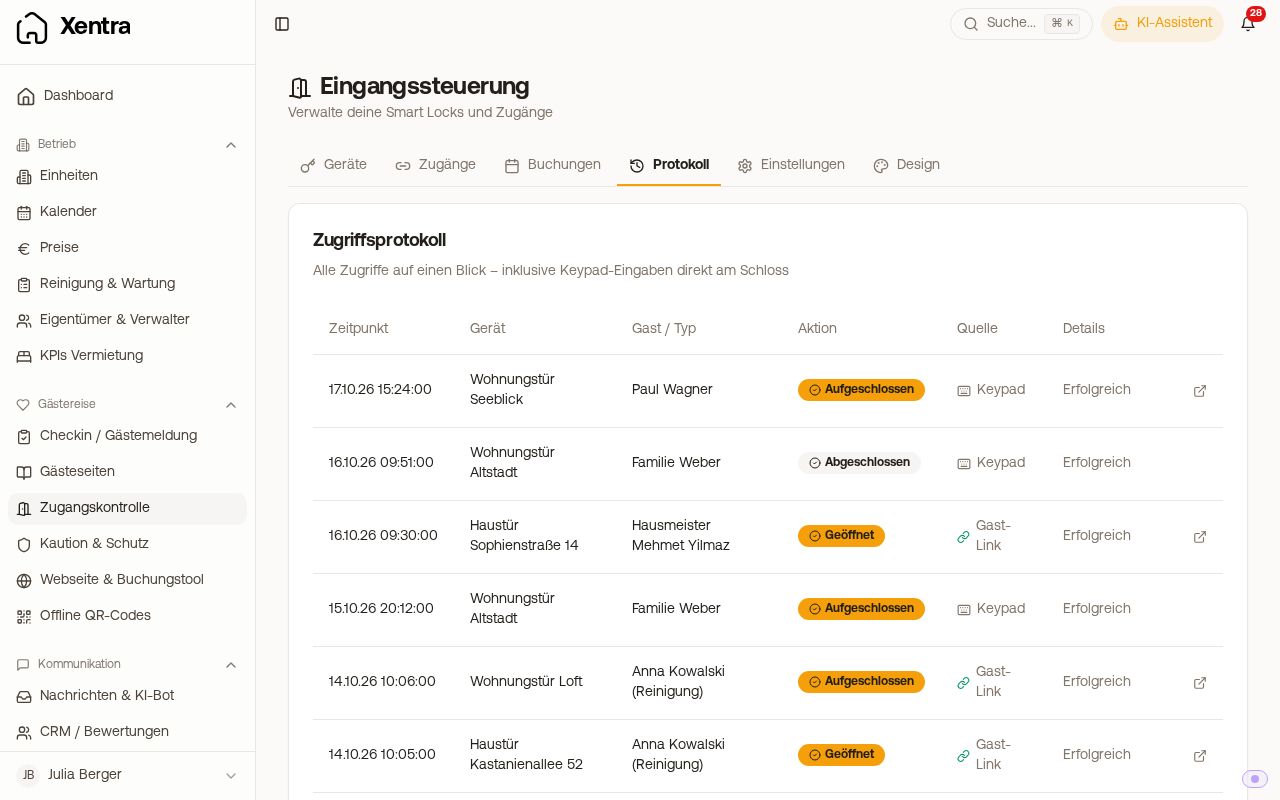 Log tab with openings via access link and on the keypad
What reaches the guest
{{entrance_link}}is the personal access link. It is valid during the booking's access period and no longer opens any door if a booking is cancelled.- Door codes are located in
{{nukicodesxentragenerated}},{{xentrattlockcode}},{{xentratedeecode}},{{igloohome_code}},{{xentralivioncode}}(LivionKey), and{{xentramasuntcode}}(masunt), or in{{rooms_access_codes}}for multi room bookings. All keypad doors of a booking receive the same number (for igloohome, each lock calculates its own PIN). - You can see the current code of a booking in the Calendar when you hover over the booking with your mouse, and in the preview of a message, for Nuki also in the booking under Access & Details.
- If you move a booking to a different unit, the access link and door code follow the new unit.
Remove provider
Settings tab → tap the trash can next to the provider. If active entrances without a booking (for example cleaning or host) are still using a device from this connection, Xentra warns you beforehand: These links will no longer work afterwards and must be recreated after reconnecting.
- Times: Setting check-in and check-out times and Access period of a booking and visibility of the access link
- Links without booking: Access links for cleaning, craftspeople, and yourself
- What the guest sees: Access page for guests: Functions, location check, and appearance
- Per provider: Nuki integration, Connecting TTLock and door codes, Connecting Tedee and door codes, Igloohome: PIN per booking and manual codes, Connecting Ring intercom, Connect SwitchBot, Connecting LivionKey key cabinet, Connecting masunt key safe
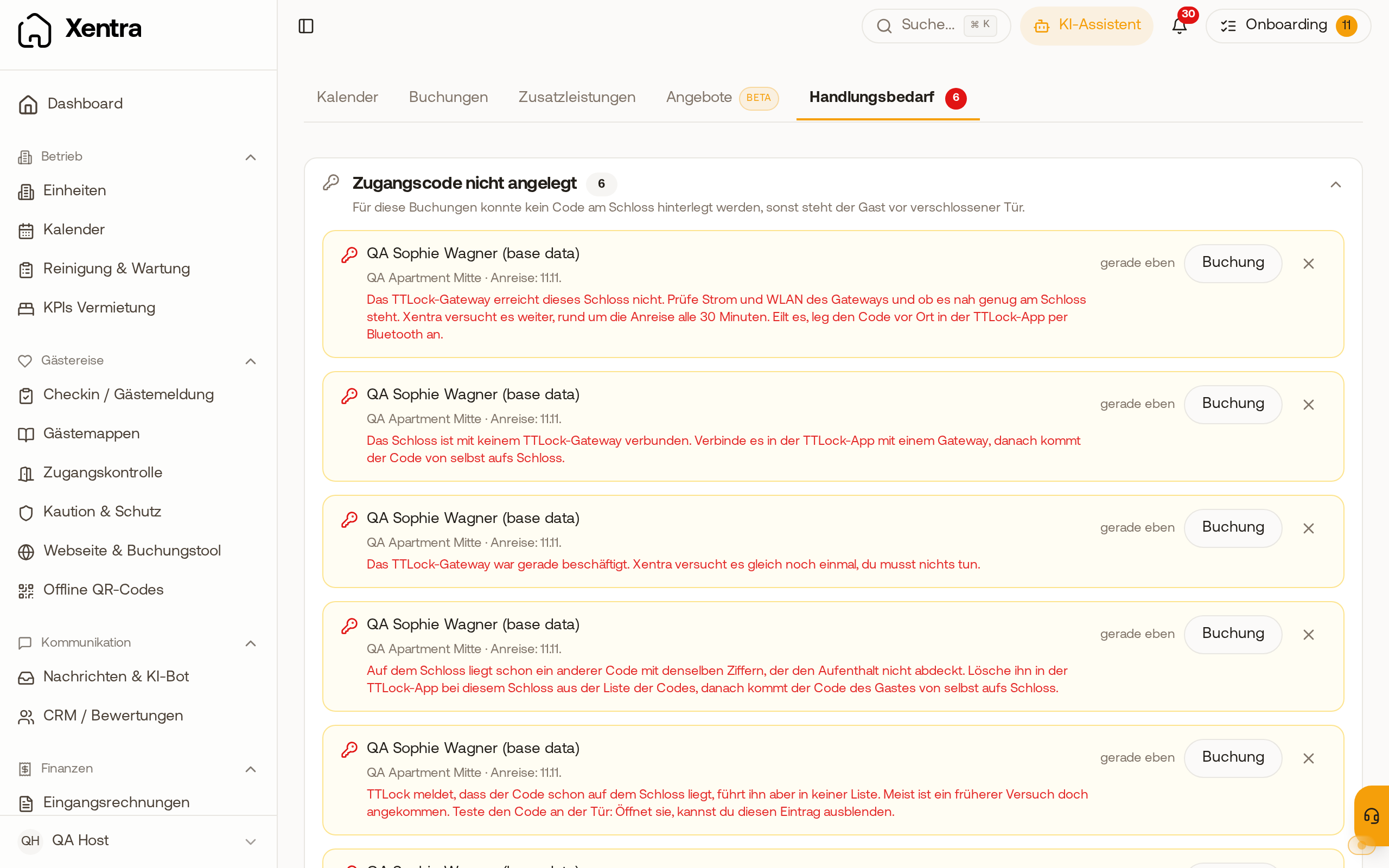
- If a code is missing: Door code missing or not on the lock.
- Team: Team members open doors via My Entrances, see Opening doors with "My Entrances"