
Connecting the Ring intercom and doorbell
Connect Ring, what to do with “connected, but no devices”, ring before opening, renew the token and switch to another Ring account.
Updated on November 6, 2026
With Ring, your guests open the front door via their access link, for example via a Ring Intercom at the entry panel.
Connecting
- Access Control → Settings tab → Add Provider → Ring (Direct).
- Enter the email and password of your Ring account, then the confirmation code that Ring sends you.
- In the Devices tab, assign the intercom to its unit. If the front door belongs to several apartments, tick all of them.
Xentra connects exactly one Ring login per account. All Ring devices you want to use must therefore be in this Ring account.
Connected, but no devices
If Xentra finds no device under your Ring login, the connect window shows “Connected, but no devices”, and the Devices tab says that no device is under this login. Then the doorbell or intercom is in a different Ring account, often that of the owner or the property management.
- Check in the Ring app which account the doorbell is set up in.
- Reconnect Ring with exactly this account (see below, changing the email).
- Then click Refresh in the Devices tab.
In the Devices tab
Expanded, a Ring device shows battery, Wi-Fi and type, an Open door button and the latest activity.
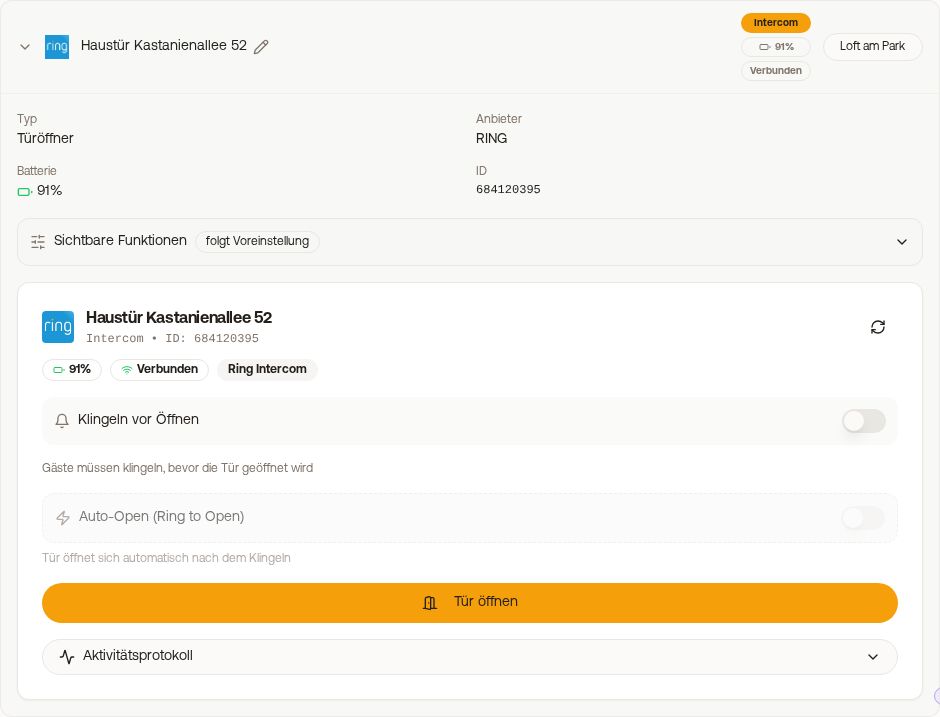 Expanded Ring device with ring before opening, greyed-out auto-open and open door
- Ring before opening: if the switch is on, the guest must ring first before they can open the door via their access link.
- Auto-Open (Ring to Open), that is, the door opening by itself when the bell rings, is currently disabled and cannot be switched on.
Renewing the Ring connection
Ring logs your login out after some time. The Ring card under Settings → Connected providers shows until when the token is valid. If Ring ends your login earlier, the sync fails and the card shows “Token expired”. Then renew the connection as described below; after the next successful sync the card shows the expiry date again. 7 days and 1 day before it expires, Xentra reminds you: in the bell, by push (if you have installed the Xentra app) and by email. You switch push and email off separately under Settings → Notifications → Key, row Token reminder. The bell always stays on, so you do not miss the expiry.
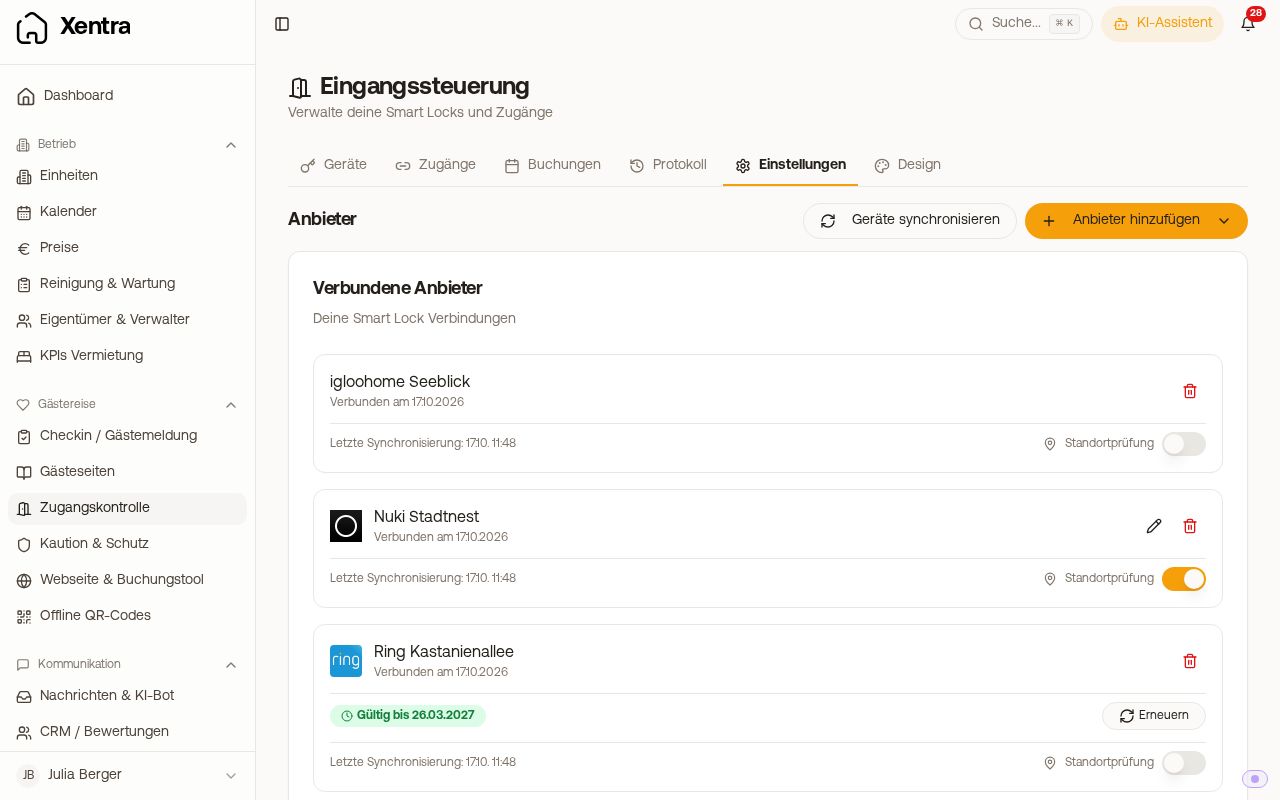 Ring card under connected providers with token validity and Renew button
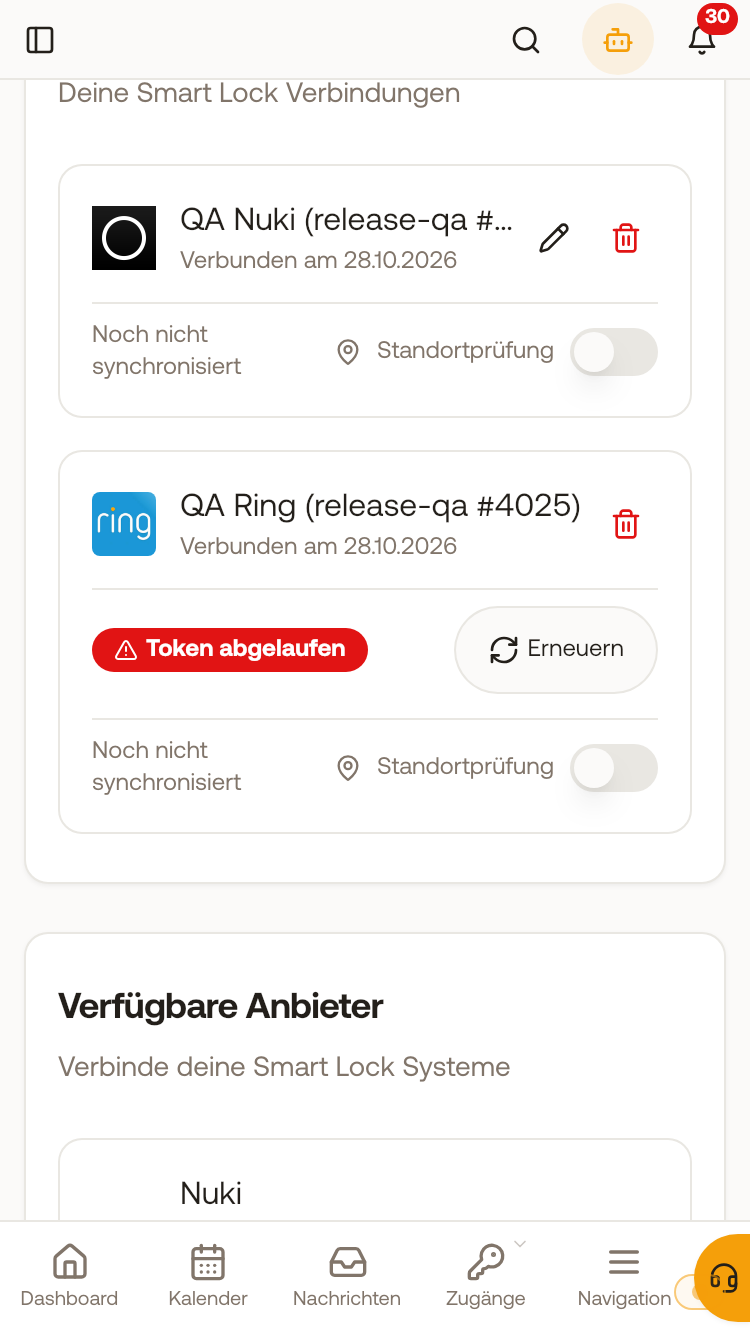 Ring card under connected providers showing Token expired in red next to the Renew button
This is how you renew without creating a second connection:
- Click Renew on the Ring card.
- You only enter the confirmation code from Ring.
- If you changed the password at Ring, the password field opens again. You can also do this by hand via Enter a different password.
Switching to a different Ring account
In the same window you change the email: click the pencil next to the address, enter the new Ring address, then renew. The existing connection, including the device assignments, is kept. Devices already assigned keep their unit; a new device appears in the Devices tab: click No unit there and choose the unit.