
Opening doors with "My Entrances"
The page for opening doors quickly in the app and for team members: who sees it, opening and sharing, and why it can be empty.
Updated on November 2, 2026
My Entrances is the page for opening doors quickly on site. It lists the access links without a booking (cleaning, maintenance, host), sorted by unit. A tap on Open opens the access page with the door buttons.
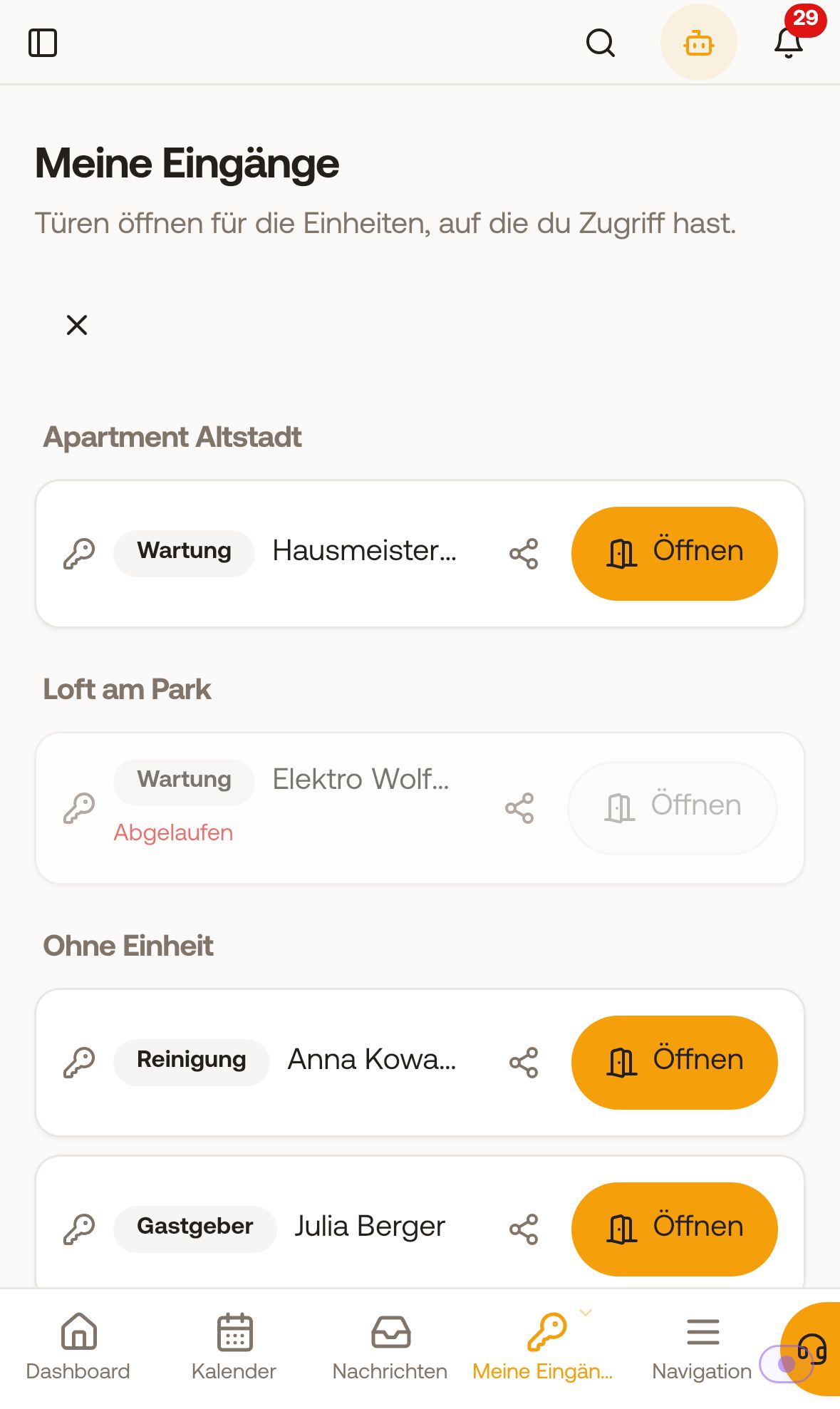 My Entrances in the app with access links by unit
Where to find the page
- On your phone (Xentra app or browser): at the bottom of the navigation under My Entrances. You can swap this fourth spot for another page using the small arrow.
- On the computer, My Entrances only appears for team members in the sidebar. As a host you work there directly in Access Control.
- Team members only see the access for units they are enabled for. You see all of them. An access for several units appears under each of these units (as a team member, under those you are enabled for). Accesses without a unit appear under No unit.
What you can do there
- Open: opens the access page of the link. Swipe from the left edge to get back to the list.
- Share: sends the link on via your phone's share menu, for example by WhatsApp to a cleaner. Where that is not possible, it is copied.
- Expired accesses are marked Expired and can no longer be opened.
- Revoked accesses no longer appear here. You still find them in Access Control on the Access tab with the status Revoked.
- Under Shared with me are keys that were sent to you or that you have already opened once with your login. Every login has this area, even without the "Access Control" right. You only see the accesses of your account's units here with the "Access Control" right.
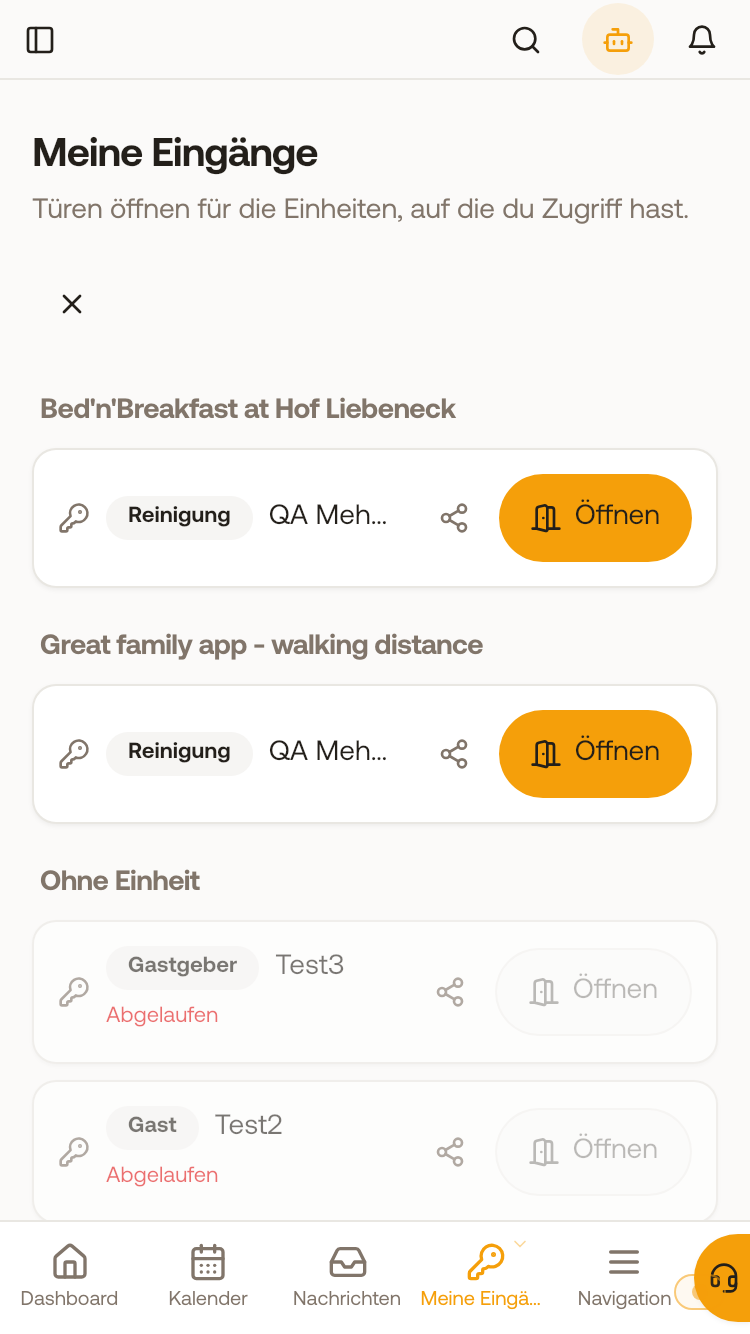 Opening doors with "My Entrances"
Send an access to a team member
In Access Control on the Access tab, for an access without a booking, you choose Send to team member in the menu with the three dots and pick a person from your team. The active team members assigned to this unit are available to choose from. The person then finds the link under My Entrances, Shared with me, and gets a notification. For this you need "Access Control: Edit", as a team member only for your own units.
The list is empty?
There is no access without a booking for the units yet. Create one: Access Control → Access tab → New Access, access type for example Cleaning or Host (see Access links for cleaning, tradespeople and yourself). It then appears for everyone who is enabled for this unit.
Guest access links are not listed here. You find them in the Door access card of the respective booking.
What a team member may do in Access Control themselves (operate locks, create codes) depends on their "Access Control" right, see the article on sub-accounts and team rights.