
Tourist tax in Xentra: how it works
Overview: who calculates the tourist tax, how the guest pays it in the online check-in, what you need for it and where you set everything up.
Updated on October 19, 2026
Xentra calculates the tourist tax (also called spa contribution, guest contribution, local tax, city tax or tassa di soggiorno) for each booking and collects it from the guest in the online check-in. The money goes to your Stripe account, and the platform fee is deducted from it. You can set everything under Checkin / Guest Registration → Tourist Tax. Each card there is a tourist tax configuration with its units, age groups, seasons and exemptions.
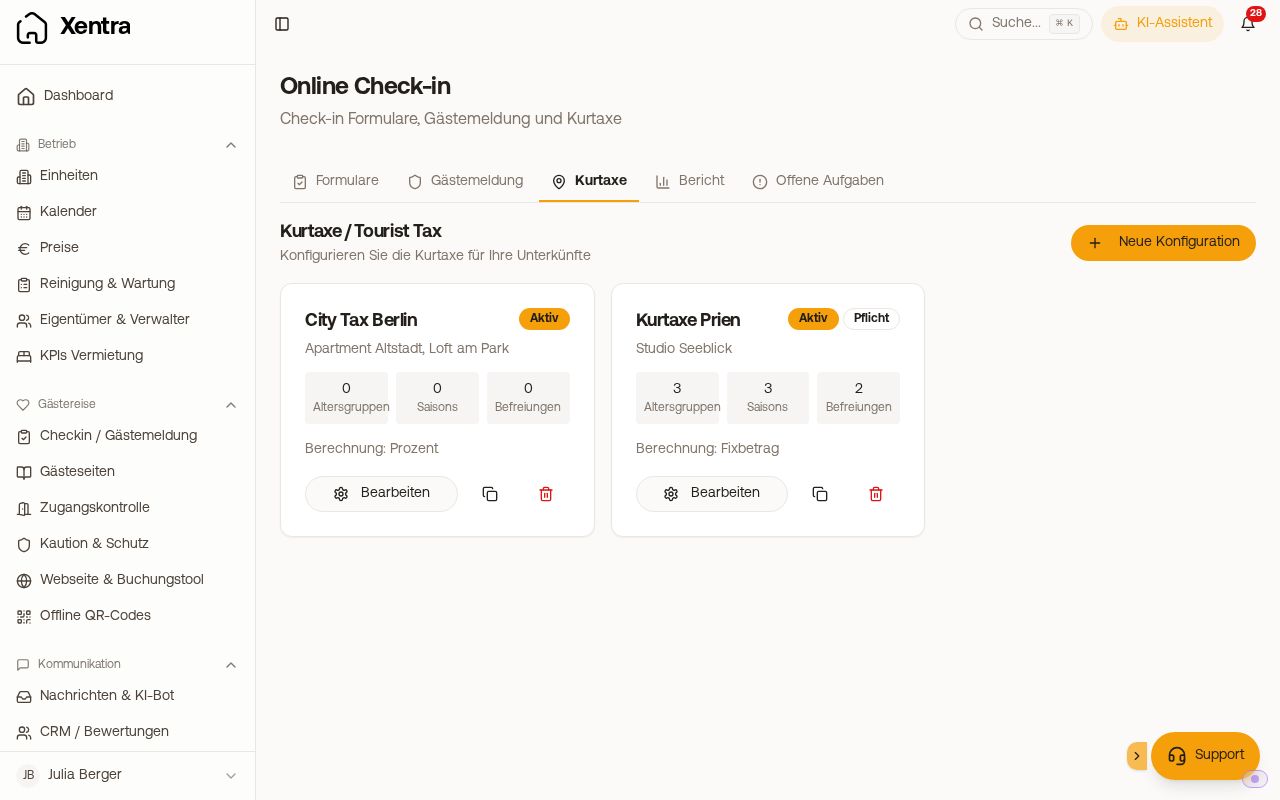 Tourist tax configurations under Checkin / Guest Registration → Tourist Tax
Who calculates the amount
- Your tourist tax configuration: For units without a connection to a registration office, Xentra calculates with your rates, age groups, seasons and exemptions.
- The municipality: If a unit is connected to AVS Direkt, Feratel, Tramino or WinTOP, the amount comes from the registration to the municipality. Your own rates do not apply there. With Feratel and Tramino you can switch on “Calculate tourist tax yourself” in guest registration. With WinTOP, choose “Use your own rate from the tourist tax setting”. With AVS Direkt (“Show tourist tax only (no payment)”) and WinTOP you can also only show the amount. Then the guest does not pay it via Xentra.
How it works for the guest
- Before check-in, the booking shows a provisional tourist tax, usually the amount of the portal. It is based on the booked number of persons and does not yet know any age details.
- In the online check-in, the guest states the travelers. Xentra assigns them to your age groups via the date of birth. If applicable, the guest selects an exemption or reduction and sees the breakdown.
- They pay the tourist tax together with the other items of the check-in via Stripe. If the tourist tax is set as mandatory, the check-in is only completed after that.
- The paid amount then appears in the booking. What of it goes onto the guest invoice is governed by your invoice settings (see Tourist tax on the guest invoice: source, channel amount and notes).
What you need
- An active tourist tax configuration assigned to the unit, or a configuration for all units.
- A check-in form assigned to the unit.
- A connected Stripe account for which Stripe has enabled payments and payouts (Settings → Payments). Without a Stripe account, the guest cannot pay the tourist tax online, and a payment link for an open tourist tax cannot be created either.
If units with online check-in have no tourist tax yet, the Tourist Tax tab shows the note “Properties without stored tourist tax” at the top. If no tourist tax applies there, hide the note with “Hide”.
Mandatory or voluntary
With “Mandatory in online check-in”, the guest only gets through the check-in after payment. If you have switched on “Allow payment on invoice” in your check-in form, they can complete it on invoice instead. The tourist tax then appears as an open item on their invoice, and no money flows via Xentra.
If a mandatory tourist tax is open, automatic messages that wait for the fully completed check-in (for example with the door code) only go out once the tourist tax is paid or you mark it as paid.
Where you see the money
- In the booking, in the Payments card.
- Under Transactions with the type “Tourist tax”. In your Stripe account you find these amounts under “Payment volume” or “Payouts”, not under “Payments”.
- The platform fee also applies to tourist tax, see Where your guests' money ends up.
Changes after check-in
- Before the online check-in is completed: if you extend the stay, Xentra takes over the new data, and the guest sees the newly calculated amount in the check-in.
- After the online check-in is completed, the paid tourist tax is not recalculated automatically. You request the difference for additional nights yourself.
- For units with AVS Direkt, Xentra reports changed travel data to AVS again. If the amount changes as a result, the difference appears in the Payments card as “Tourist Tax Surcharge” or “Tourist Tax Credit”.
Further reading
- Set up tourist tax: calculation method, mandatory and service fee
- Tourist tax: age groups, seasons and rate changes
- Tourist tax: exemptions, proof and portal exclusion
- Tourist tax not paid: collect it afterwards
- Tourist tax on the guest invoice: source, channel amount and notes
If you are coming from Stellar Trust, the Xentra team can take over your existing tourist tax configuration (rates, age groups, seasons, tiers). To do so, write to hello@support.myxentra.com instead of creating everything again.