
Tourist tax on the guest invoice: Source, channel amount, and notices
Which tourist tax amount ends up on your guest invoice: Source, channel or check-in amount, the Booking.com toggle, VAT, and the notice "Check tourist tax".
Updated on November 12, 2026
Tourist tax on the guest invoice
You set which tourist tax amount appears on a guest invoice in two places, in each case per channel (Airbnb, Booking.com, Vrbo, Expedia, Feratel, Agoda, direct booking; Feratel has its own tab, separate from direct bookings) and for the whole account, not per unit:
- Where the amount comes from and whether it is included in the channel price: Settings → Financial Imports, card "Booking price per channel".
- What appears on the invoice: Guest Invoices → Settings, section "Line items", item "Tourist tax". You see the details from the financial import under "From the booking price" as read-only there, with the link "Change under Financial Imports".
Both apply to automatic invoices and to invoices via "E-Invoice" in the booking. Check-in tourist tax is never included in the prices for Airbnb, Booking.com, or other channels.
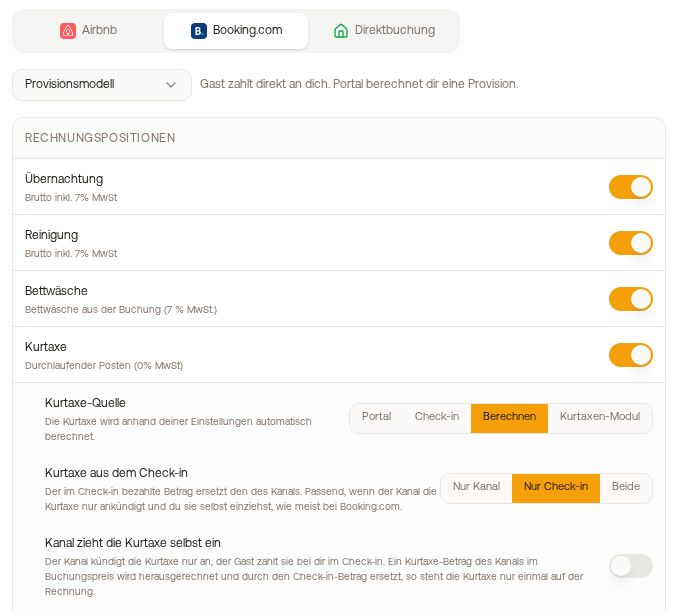 Booking.com tab: Tourist tax with "Check-in only" and the toggle "The channel collects the tourist tax itself"
Tourist Tax Source (Financial import)
If the "Tourist tax" item is turned off in the line items, no tourist tax appears on the invoice. If it is turned on, Xentra takes the amount from the "Tourist Tax Source":
- Channel: the amount that the channel sends with the booking.
- Check-in: the amount from the guest's online check-in.
- "Calculate": Xentra calculates using the calculation method and rate that you enter below it. Which units this applies to is specified in Calculated tourist tax only for specific units.
- "Tourist Tax Module": Xentra calculates using the tourist tax configuration of the respective unit. If an online check-in with calculated tourist tax is present, Xentra takes exactly this amount. Units without a configuration keep the amount from the channel.
"Tourist tax from the check-in" (Line items)
Located directly under the item "Tourist tax", as long as it is turned on. If the channel specifies a tourist tax amount and the guest additionally pays in the online check-in, this setting decides:
- "Channel only" (default): The channel amount appears on the invoice, the check-in payment does not get its own line item.
- "Check-in only": The amount paid in the check-in replaces the channel amount. This fits when the channel only announces the tourist tax and you collect it yourself, as is usually the case with Booking.com.
- "Both": Both amounts appear on the invoice. Only choose this if the channel has really already collected the tourist tax, otherwise the guest pays twice.
Booking.com: "The channel collects the tourist tax itself"
If "Check-in only" is set on the Booking.com tab, this toggle appears underneath. If you select "Check-in only" again, Xentra turns it off as well; if you turn it back on, it stays on.
- Off: Booking.com only announces the tourist tax, the guest pays it to you during check-in. Xentra deducts the Booking.com amount from the booking price and inserts the check-in amount, the tourist tax appears only once on the invoice. This also applies if more people paid in the check-in than booked, and for AVS Direkt.
- On: The Booking.com amount stays in the price, the check-in tourist tax comes on top. Only turn on if Booking.com has really collected the tourist tax itself.
- It is only deducted if it is proven that the amount is included in the price (statement by Booking.com or the calculated commission).
- If the tourist tax is not yet paid with the toggle off (invoice before check-in, guest without online check-in), no tourist tax line appears as "Paid" on the invoice. If the guest selected "Pay on invoice", it appears as an open item.
If you exclude Booking.com in your tourist tax configuration under "Portal Exclusion" and set "Check-in only" in the line items, nothing is collected and nothing ends up on the invoice.
"Included in portal gross" and VAT
- "Included in portal gross" (Financial import): On means the tourist tax is already included in the channel price (typical for Airbnb). Off means it comes on top (typical for Booking.com). If the guest paid the tourist tax via Xentra (in the online check-in or via the tourist tax payment link), it always comes on top, even for Airbnb with this toggle on.
- "Bed-tax VAT treatment" (Line items): "Pass-through (0 %)", "Stay VAT", or "Custom VAT rate". The guest always pays the same amount, VAT is only calculated out. If "Apply VAT to tourist tax" is turned on in your tourist tax configuration, its rate applies. Clarify with your tax advisor whether the tourist tax is subject to VAT in your case.
Already created invoices do not change. If one is incorrect, cancel it and recreate it.
Booking.com: Comparison with numbers from Booking.com
For Booking.com bookings via the Channel Manager, Xentra compares every new invoice with the numbers Booking.com sends for the booking. If the tourist tax would appear twice (in the overnight stay and as its own line) or was wrongly deducted from the overnight stay, Xentra corrects the overnight stay beforehand. This applies to automatic invoices and to "E-Invoice" in the booking.
- If Booking.com did not collect the tourist tax, it appears as open on the invoice, unless the guest has already paid it via Xentra (online check-in or tourist tax payment link).
- If an invoice cannot be corrected with certainty, it is created but not sent automatically, and you get "Check guest invoice" in the bell notification icon. Check the line items and send them manually.
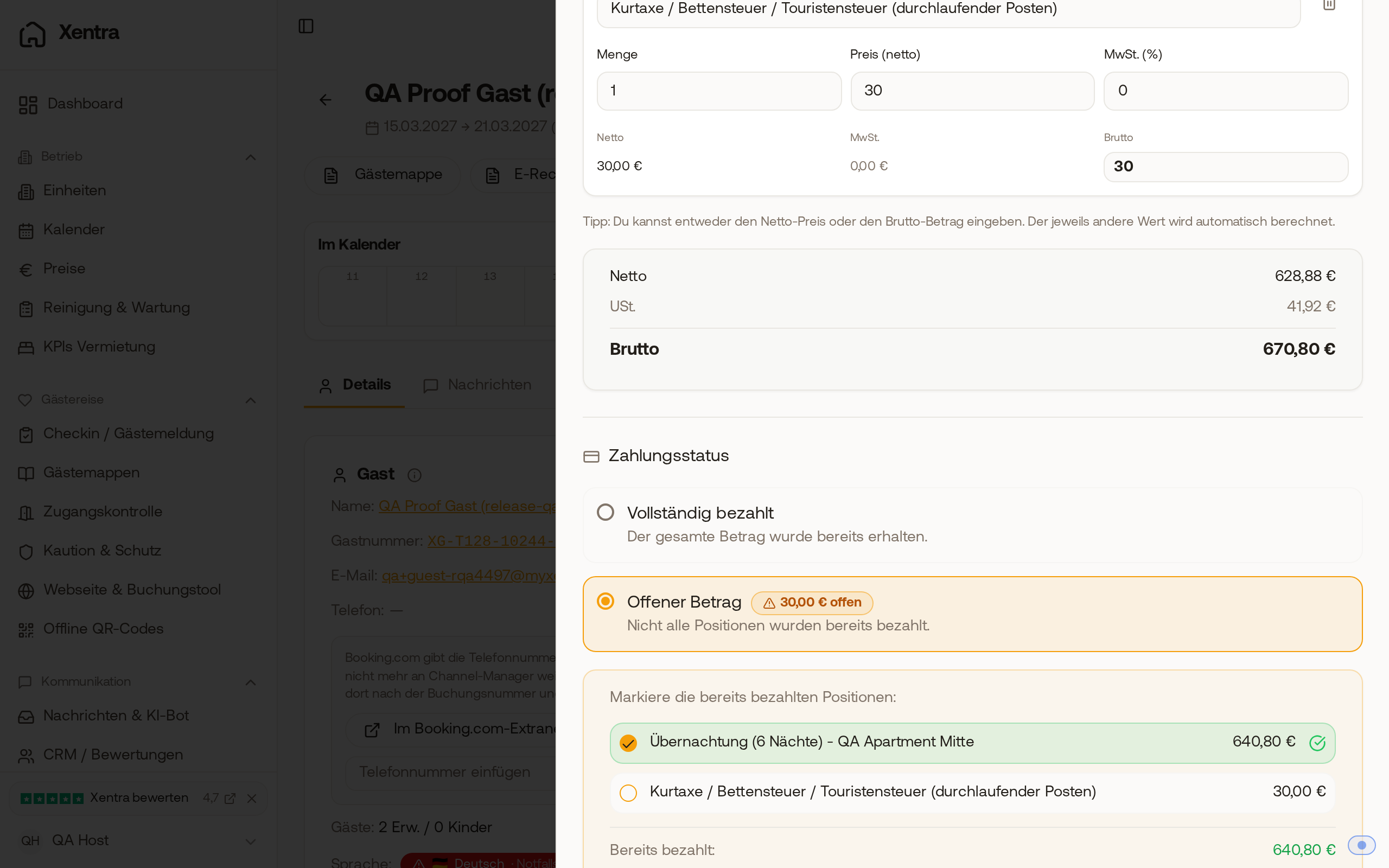 Booking.com booking in the E-Invoice: Stay paid without tourist tax, tourist tax €30 open, total €670.80.
Invoice by hand
With "E-Invoice", the tourist tax paid in the check-in is only pre-selected if the "Tourist tax" item is turned on for the channel; a service fee on it follows the "Add-ons" item. You can still check deselected items for this single invoice.
Notice "Check tourist tax"
If tourist tax, check-in payment, invoice, or (for Booking.com) commission do not match, Xentra shows this under Calendar → "Action needed", section "Check tourist tax", and in the booking. Xentra changes nothing, you decide.
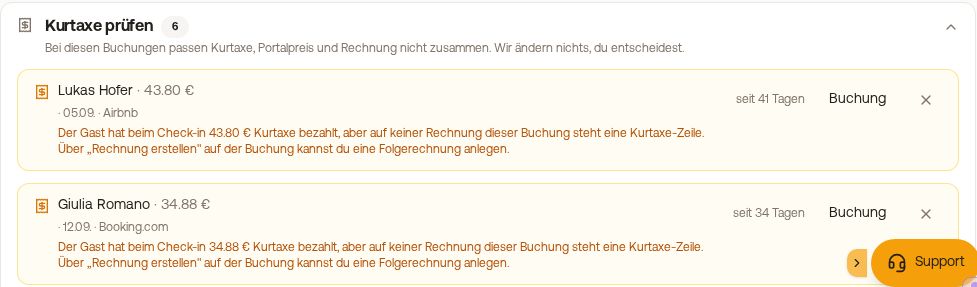 Action needed, section "Check tourist tax" with notices "Payment without receipt"
- Charged twice (Booking.com): According to the commission, the tourist tax is already included in the channel price, and the guest paid it again during check-in. Refund the check-in payment (see Refunds: refund whole payment or single line item) and exclude Booking.com in your tourist tax configuration under "Portal Exclusion". The notice does not appear if the payment fee from Booking.com shows that Booking did not collect the tourist tax at all. Check in the reservation in the extranet before issuing a refund to see if Booking really collected the tourist tax.
- Setting contradicted (Booking.com): "Included in portal gross" does not match the commission for this booking. If this is intentional, click "Set like this on purpose": The notice disappears for all bookings from this channel until you change the setting.
- Payment without receipt (any channel): The guest paid the tourist tax during check-in, but no invoice for this booking has a tourist tax line. Create a follow-up invoice via "E-Invoice" in the booking.
You can hide individual notices.