
Connecting Tedee and door codes
Connect Tedee with a personal access key, why the bridge is required, door code per booking on the keypad and what helps when the PIN list is full.
Updated on October 19, 2026
Your guests open Tedee locks via their access link, and with a Tedee keypad every booking automatically gets its own door code.
Requirements
- A Tedee Bridge is required. Without a bridge, Xentra cannot reach the lock: neither opening via access link nor door codes work.
- For door codes you also need a Tedee Keypad, paired with the lock.
Connecting
- In the Tedee Portal, under Personal Access Keys, create a new key. Required permissions (scopes): Device.ReadWrite, Lock.Operate and DeviceActivity.Read.
- In Xentra, under Access Control → Settings → Add Provider → Tedee, enter the Personal Access Key and connect.
- In the Devices tab, assign each lock to its unit.
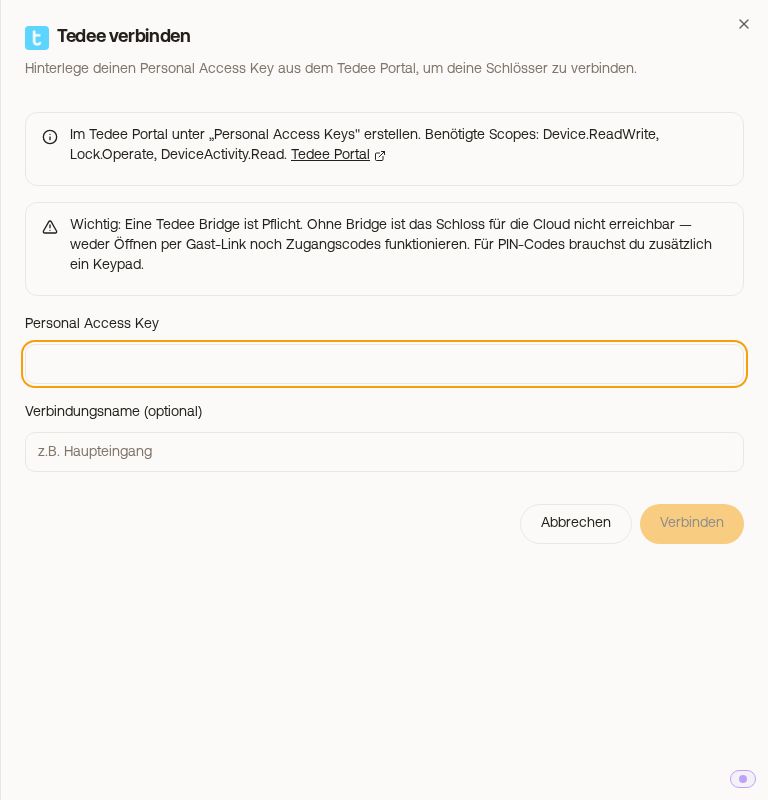 Connect Tedee window with personal access key
If Xentra finds a lock without a bridge, it warns you when connecting and when syncing: “No bridge detected, this lock cannot be controlled via the cloud.”
Door code per booking
- Xentra creates the code immediately when the booking comes in, if the booking arrives via a connected channel, the booking widget, the calendar or the API. Otherwise at the latest 3 days before arrival.
- The code is valid during the booking's access period (default access times) and is deleted after departure. If you change a booking's period, this is passed on to the lock.
- If the unit has several keypad doors, also from Nuki or TTLock, all get the same 6-digit number.
- In messages you insert the code with
{{xentratedeecode}}.
In the Devices tab and the log
Expanded, a Tedee lock shows whether a keypad was detected and whether it is online, and you can lock and unlock it from Xentra. In the Log tab, openings at the keypad, via the Tedee app or by hand also appear, with the name of the code.
When something goes wrong
- PIN list full: every Tedee lock has only a limited number of codes. Once it is reached, the lock accepts no new one and the booking shows under Action needed. Delete old codes in the Tedee app.
- Lock offline: check bridge, Wi-Fi and battery. Xentra tries again on its own.
- More on this in Door code missing or not on the lock.