
Replacing Smoobu: Xentra as a complete PMS
What you need to cancel Smoobu or another PMS, in which order, and what the import brings along and what it does not.
Updated on November 7, 2026
Using Xentra as a complete PMS
Xentra can completely replace Smoobu (or another PMS). Channel management for Airbnb, Booking.com, VRBO/FeWo-direkt, and Expedia then runs via the integrated Channex connection, which is included in the Xentra Pro plan.
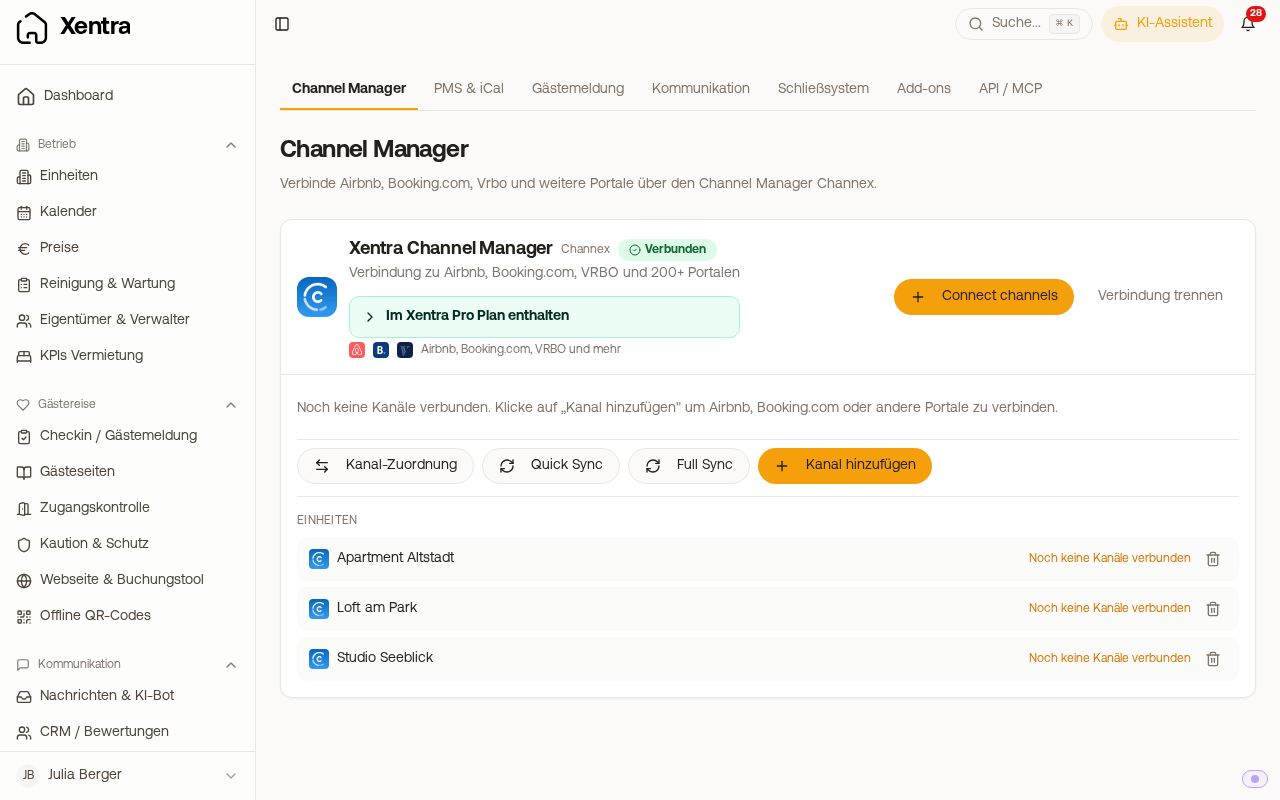 The Channel Manager tab: here you connect the portals directly
Order, please follow exactly
- Connect Channex: Open Channel Manager
- Add channels and map the listings to the Xentra units
- Synchronize bookings and calendar and cross check that everything is complete
- Test check-in flow and messages: Automations, templates, access codes
- Only after that cancel the old PMS
Never cancel before step 4. As long as both systems write to the same channels in parallel, the wrong one wins in case of doubt.
If Smoobu is still running during the transition period, turn on "Push bookings to PMS" in the Smoobu connection. Then bookings that you already create in Xentra also end up in Smoobu, and nothing gets double booked there (see Push bookings to your PMS).
Channels that only run in Smoobu
Some channels are only known to Smoobu, for example your Smoobu website with booking engine. After the switch, such a channel no longer sees the bookings from Xentra, and its bookings do not arrive in Xentra, so double bookings are a risk. The transition assistant lists such channels before the switch with the number of their bookings and pauses the switch until you confirm them. Connect each of these channels with Channex or turn it off in Smoobu, including your Smoobu website. You then accept direct bookings via the Xentra booking tool.
After the switch: Smoobu no longer delivers anything for these units
As soon as a unit is live via Channex, its bookings belong to Channex. From this moment on, the Smoobu import skips every reservation and every block for this unit, so that another import does not overwrite the Channex data. This applies per unit: units that are still connected only to Smoobu are imported normally.
Important here: The Smoobu connection remains set to "Connected" afterwards, and the sync runs through without an error message. A booking that you still create in Smoobu or that arrives there after the switch therefore does not arrive in Xentra. Create it directly in Xentra (calendar, "New booking").
What Xentra covers then
Channel management via Channex, calendar and bookings, automated guest communication, online check-in, guest registration (directly via AVS, Feratel, Tramino, or WinTOP, abroad via Chekin), tourist tax, smart locks, digital guest guides, invoices, and reports.
We support you during the switch, write to hello@support.myxentra.com.
What comes along with the import from Smoobu and what does not, and how you collect open remaining payments from imported bookings: see Smoobu import: what comes along and what does not.
Turn off automatic messages in Smoobu
As soon as your automations run in Xentra, turn off all automatic emails in Smoobu. Otherwise the guest receives the same message twice. This also applies if Smoobu no longer has access to a portal: otherwise Smoobu automations continue to apply for direct bookings.
Door lock: when Smoobu and Xentra are connected to the same Nuki
If your Nuki lock was connected to Smoobu, there are two codes on the lock per booking during the switch, the one from Smoobu and the one from Xentra. Both work. Xentra creates the codes for your imported bookings in time, at the latest 14 days before arrival. Xentra only removes third party codes once their end date has passed. Xentra does not touch active Smoobu codes and codes without an end date (for example your own or those of the cleaning team). Whether Smoobu deletes its codes when disconnecting is up to Smoobu. Therefore, only disconnect Nuki in Smoobu once the last guest who received their code via a Smoobu message has departed.
Disconnect Smoobu in Xentra
Once all units are live via the Channel Manager and automatic emails in Smoobu are turned off, you disconnect the connection yourself: Open PMS & iCal, click "Settings" on Smoobu, at the bottom click "Disconnect" and confirm. If you have multiple Smoobu connections, you disconnect each one individually. After that, Xentra no longer fetches anything from Smoobu, your imported bookings are retained. Only then do you cancel Smoobu.
Old Smoobu bookings cannot be messaged via the portal
Bookings that came in via Smoobu before you switched to the direct channel connection are not known to the new channel. For these exact bookings, Xentra cannot send anything via the portal; you then see a message that the booking is not correctly linked. A sync does not change this, and there is no button for this in the booking details. Send the message for such old bookings directly in the extranet of the portal. All bookings from the switch onward are connected, messaging works normally there.