
Use placeholders in your own PMS (PMS field rules)
Write Xentra values like check-in link, check-in status or door code into a field of your PMS via PMS field rules and use them as placeholders there.
Updated on November 7, 2026
Use Xentra placeholders in your PMS (PMS field rules)
Placeholders like {{online_checkin_link}} only work in Xentra templates, your PMS does not recognize this syntax. If you still want to send the link via messages from your PMS, Xentra writes the final value into a field of your booking in the PMS. You then use this field as a placeholder in the PMS template.
It is easier to set up templates and automations directly in Xentra (Templates, Automations). PMS field rules are for you if you want to stick with your PMS messages.
Quick setup: ready-made Xentra fields
Under Open PMS field rules, you will find "Quick Setup: System Placeholders" at the top: a table with one toggle per field and PMS connection. The choices include:
- Xentra online check-in: check-in link per booking
- Xentra check-in status and Xentra check-in completed (yes/no), for example as a condition in the PMS
- Xentra guest guide and Xentra access link. The link to the guest guide only shows your guests something when the guest guide is active ("Active" toggle in the guest guide, status "Active" instead of "Draft").
- Xentra Nuki code and Xentra igloohome code (with multiple locks, one PIN per door)
- Check-in data, Guest data and Booked services as text
If you turn on a field, Xentra also transfers the value to your existing bookings. Not every booking gets a value: bookings without a check-in link, such as departed or canceled ones, remain empty.
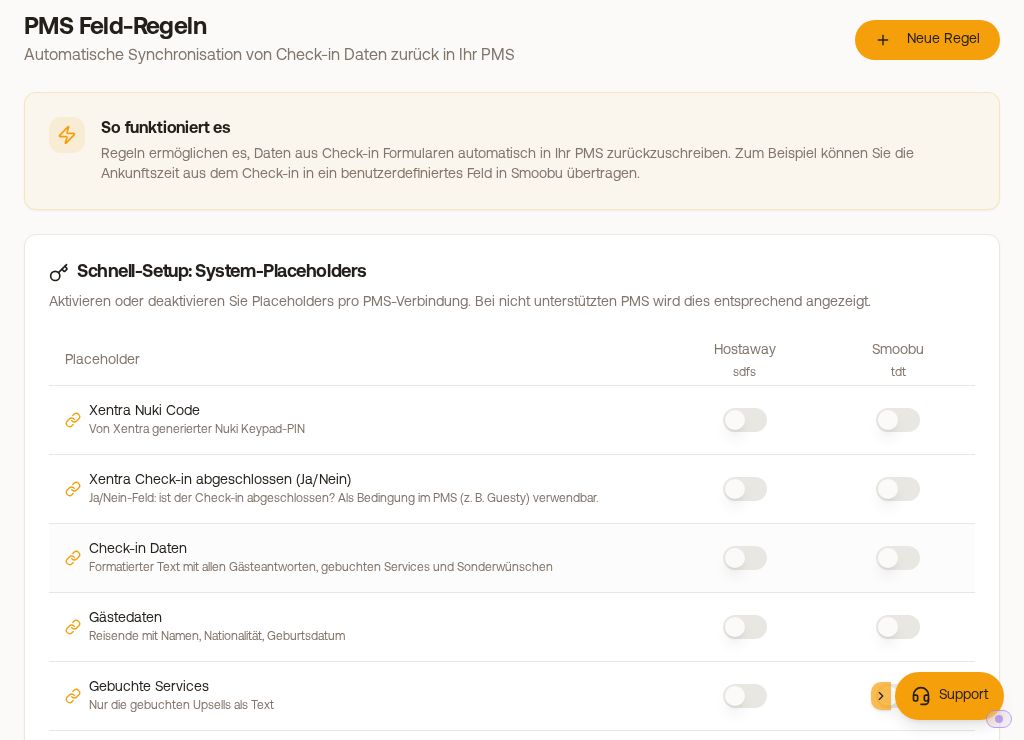 PMS field rules with quick setup and custom rules
Custom rules
With "Create New Rule", you define in three steps which data (for example, the arrival time from the check-in), where (PMS and field name in the PMS), and when it is transferred: "On new booking", "After check-in", or "Manual". With "Combine with custom text", the arrival time turns into "Check-in at 14:00", for example.
The Coverage column shows whether all affected bookings already have the value in the PMS. If any are missing, you transfer them using the play button or "Apply to existing bookings". The transfer continues running in the background, even if you leave the page.
What is the placeholder called in the PMS then?
In your PMS, you do not use the Xentra placeholder, but the field that Xentra writes to, in the syntax of your PMS.
- iLoca:
[booking.customfield.<Feldname>], for example[booking.customfield.xentraonlinecheckin],[booking.customfield.xentracheckinstatus]or[booking.customfield.xentracheckincompleted]. The info icon next to the field shows you the ready-made variable. - Lodgify has no custom fields per booking. Xentra writes into the access code field of the booking, in Lodgify templates it appears as
{{KeyCode}}. - Smily only allows the field "door_key_code".
- Guesty, Smoobu, Hostaway, Beds24, Hostfully and others: the field you selected, in the merge tag syntax of your PMS. What it looks like is described in your PMS help.
Limitations with iLoca
iLoca fields are single line, a maximum of 200 characters long, and allow neither "@" nor line breaks. Check-in data, Guest data, and Booked services are therefore set to "Not available" there.
Manually marking check-in as checked in
If you mark a booking with "Mark as checked in" in the Check-in tab of the booking, Xentra immediately writes check-in status and "Check-in completed" into the PMS. "Clear selection" resets the value there. If an older mark still says "false" in the PMS, clear the selection once and set it again.