
Messaging Bot: Knowledge, FAQs, and what the bot accesses
Global instructions, FAQs, what the bot is allowed to access, check-in times, and how the bot adopts your FAQs into its answers.
Updated on November 12, 2026
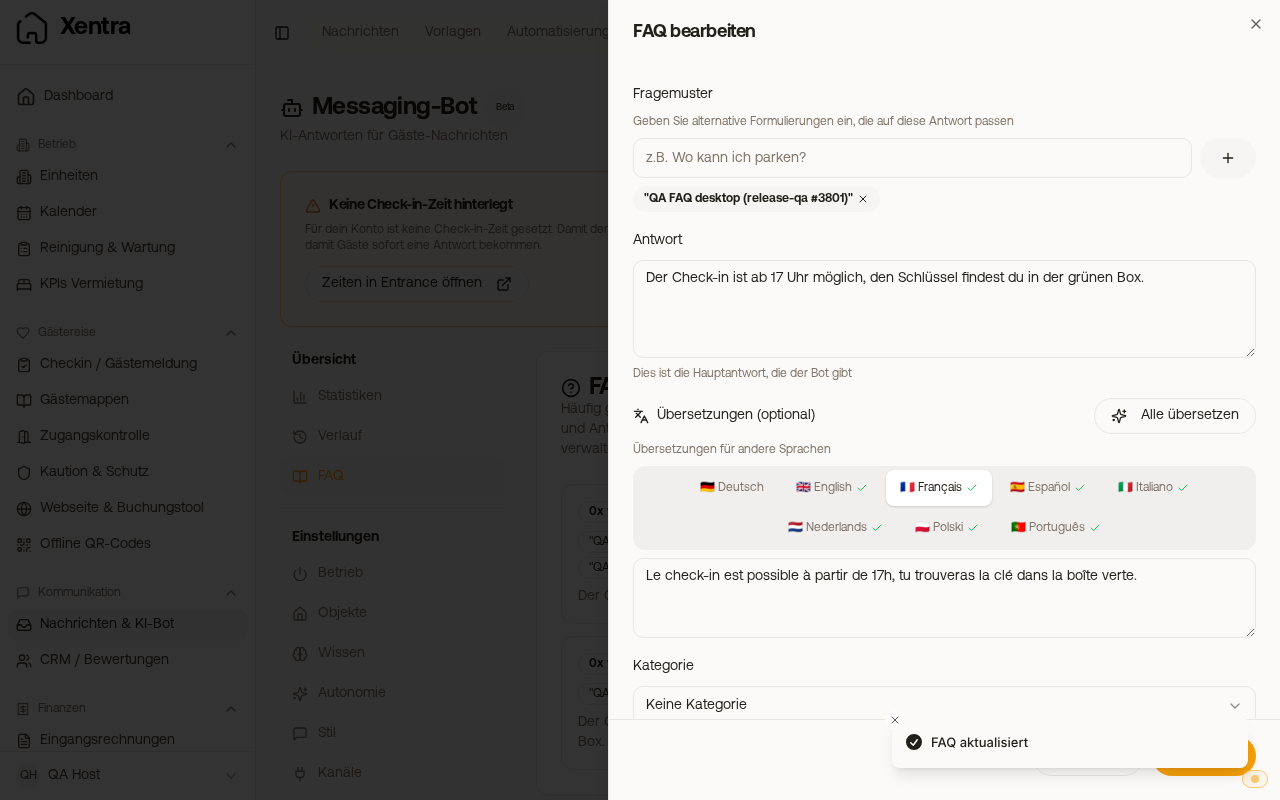
Under Knowledge on the bot page, you define what the bot knows about your properties and what it is allowed to access. To see how to turn on the bot and where it replies, see Setting up the messaging bot.
- Global bot instructions: Rules for all properties, e.g. "Late check-out until 12 PM only upon request". They have the highest priority.
- FAQs (under Overview): Questions and answers, per unit or for all. Xentra also suggests FAQs from your real previous answers (see below); nothing becomes active without your approval.
- "What the bot may access", separated for With booking and Without booking: Details of this booking (links, times, your contact details, custom fields of the unit; access link and door codes only after completed online check-in), Availability calendar (the next 90 days, it never confirms or changes a booking), Learn from History, and Read prices (like on your website).
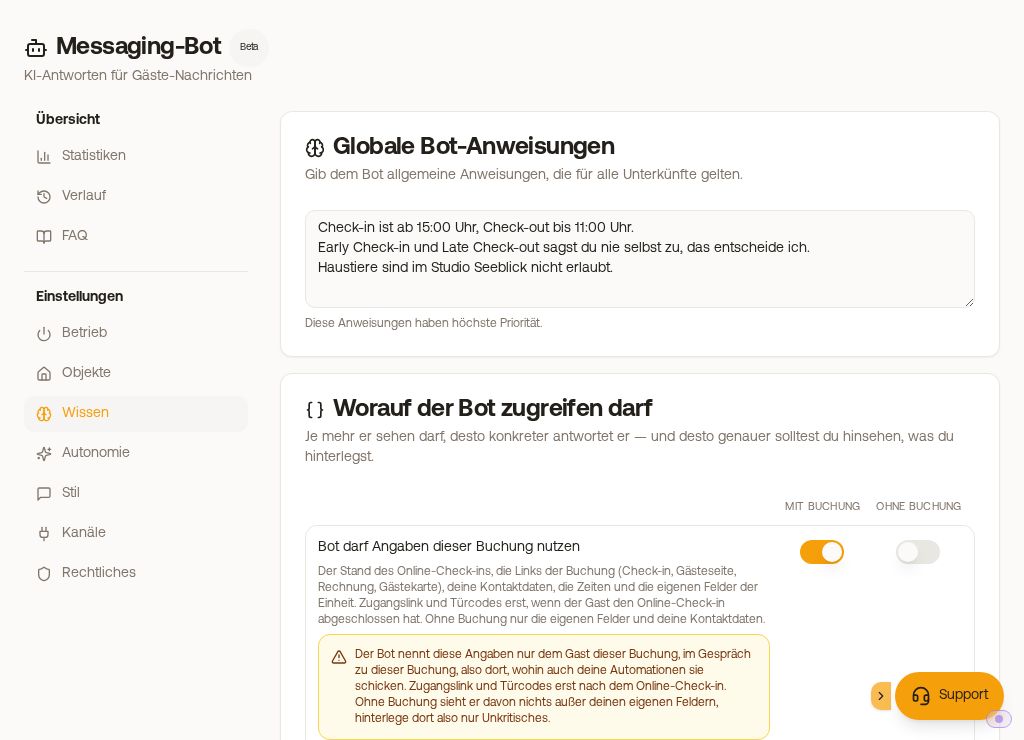 Knowledge: global instructions and the toggles "With booking" and "Without booking"
Door codes: when the bot mentions them
- If the guest guide for the booking shows the access (a section with a door placeholder or the code as text), the bot does not mention any code. It sends the link to the guest guide and says when the access will be visible there. You set when the section opens in the guest guide under "When do guests see this section?".
- Otherwise, it mentions the access link and lock PINs only after completed online check-in, and fixed codes (key code, code fields of the unit) additionally only from the check-in time.
- If you never want the bot to mention codes, turn off "Details of this booking" under With booking. Then it will no longer mention the other links and values of the booking either, such as the link to the guest guide. A separate toggle controls the check-in link (see below).
Online check-in: separate toggle
The bot can use the online check-in: In the bot settings under Knowledge, there is the toggle "Bot may use the online check-in". If it is turned on, the bot mentions the booking link and sees in the Xentra check-in whether the guest is finished. The toggle is only available under With booking. If you use your own check-in system (check-in area, Forms tab, Your own system), it mentions its link and never the Xentra check-in. It cannot see if a guest is finished there. If the toggle is turned off, the bot does not mention a link and asks you.
The bot always takes check-in and check-out times from your time settings, not from an FAQ. If an FAQ mentions a different time, you will see the notice "Your check-in times contradict each other" and receive the message "Contradiction in check-in times". Then correct the location that is incorrect.
How the bot uses your FAQs
The bot does not adopt FAQ answers word for word. It adapts wording and tone to the guest's question and your selected tone of voice, combining several relevant FAQs into one answer, for example check-in and check-out. It reads your FAQs at the moment of replying: If you change an FAQ afterwards, the change only applies to later replies. You can see what the bot actually sent in the conversation in your inbox.
The bot does not read your extra services (e.g. "Early check-in" or "Late check-out") on its own. If it should tell guests that something is bookable, what it costs, and where the guest can book it, write that explicitly in the appropriate FAQ.
FAQ suggestions and import
In FAQ management, "AI Suggestions" generates suggestions from your message history; if you selected units, only for those. Above it states where they come from: "Derived from N of your own previous answers" (starting from 8 matching question-answer pairs) or "Drafted by AI" if there were too few of your own answers; check these particularly carefully before accepting them. Xentra removes door codes, links, and long numbers from your answers before the AI sees them.
You accept each suggestion with "Apply" or reject it with the X; "Accept all" and "Discard" apply to all of them. If a suggestion is similar to an existing FAQ, it says "Similar to an existing FAQ", and Xentra will ask when you click Apply.
Via "Import FAQs from Document", you upload a PDF, TXT, or Markdown document, assign units, and click "Analyse". Do not upload documents containing personal data of your guests.
FAQs in other languages
In the FAQ window, "Translate all" translates your German answer into the other languages (English, Français, Español, Italiano, Nederlands, Polski, Português). If a guest writes in one of these languages, the bot replies based on this translation.
Salutation in translations: Translations always use the salutation you set under Style under Tone of Voice, so Informal (You) or Formal (You). This also applies if you wrote the FAQ differently yourself. Existing translations only change when you re-translate the FAQ or edit and save its German answer.
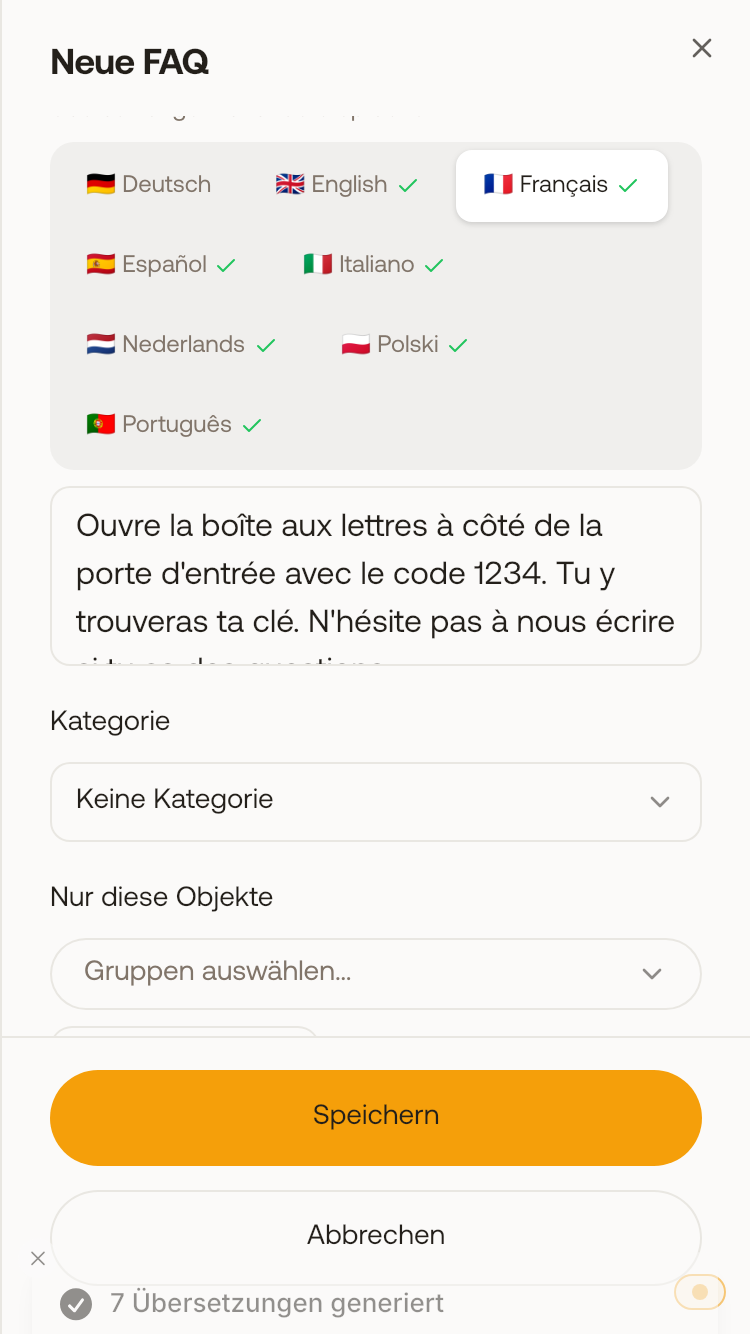 With "Informal (You)", the French translation uses the informal form ("Tu y trouveras ta clé"), even if the German FAQ uses the formal form.
If you later edit the German answer and click Save, Xentra automatically re-translates the existing translations upon saving. You do not need to click "Translate all" again for this; saving will take a few seconds. A translation you customized yourself in the same window remains as you wrote it. If you only change question patterns, category, or properties, the translations remain as they are.
If automatic translation fails, your German answer is still saved, old translations are removed, and you see a notice. The bot will then temporarily reply based on the German text. Click "Translate all" and save again.