
Set up the Messaging Bot
Consent, reply mode, properties, knowledge, autonomy, style with waiting time, channels and AI disclosure of the Messaging Bot.
Updated on November 2, 2026
The Messaging Bot answers guest messages with AI, either as a suggestion for you or on its own. You find it under Communication → “Messaging & AI Bot” → “Messaging Bot” tab (Open Messaging Bot), browser only. On the left is a navigation: under Overview statistics, history and FAQ; under Settings operation, properties, knowledge, autonomy, style, channels and legal.
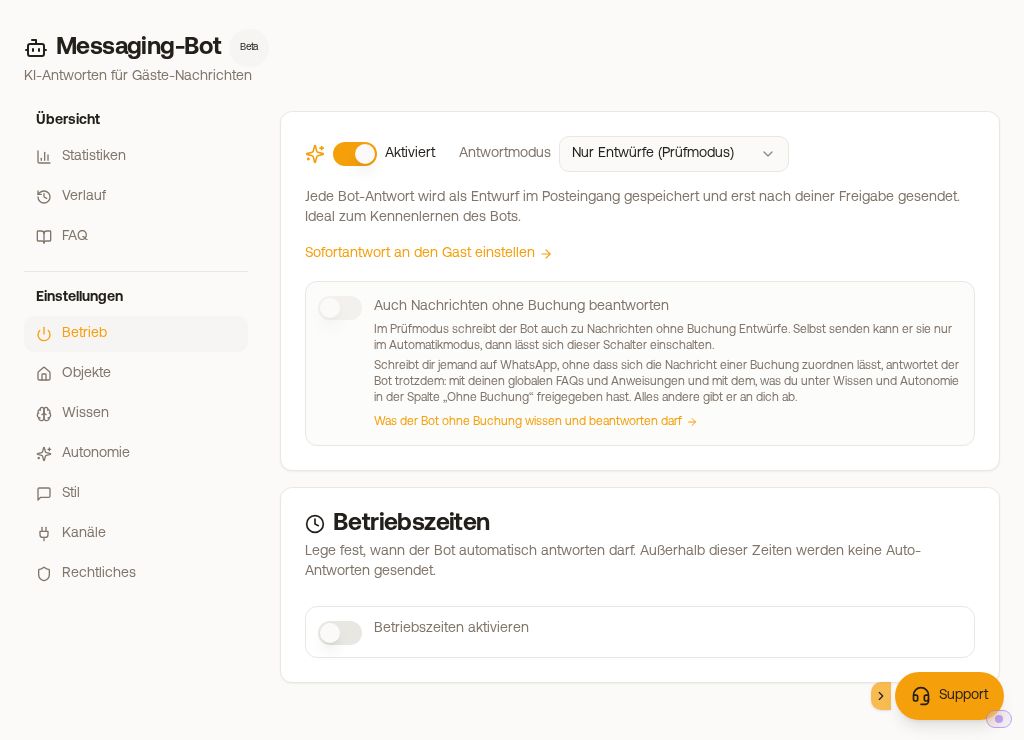 The bot page with the left navigation and the Operations section
1. Consent and operation
Before the bot or “Generate AI reply” in the inbox can work, you consent once to AI data processing under Operations (switch “I consent to anonymized data processing”). The bot uses Google Gemini. Last names, email addresses, IDs and access codes are removed beforehand. If consent is missing, “Generate AI reply” shows “Please first consent to AI data processing (bot settings)”. The AI & privacy page has no switch for this.
Afterwards, switch on the bot and choose the reply mode:
- Drafts only (review mode): every reply lands as a suggestion in the inbox and only goes out once you accept it. Ideal for getting to know the bot.
- Send automatically (Beta): the bot replies by itself. Uncertain replies and sensitive topics remain drafts. When you switch it on, you confirm that unchecked replies go out.
Thumbs up / thumbs down: The two thumbs only appear on a bot suggestion in the message box, i.e. on a draft that the bot holds back for you, or after “Generate AI reply”. A reply that the bot has sent itself cannot be rated. Thumbs down discards the suggestion at the same time. With each new reply, the bot takes your latest ratings into account: well-rated replies as a model, badly rated ones as an example of how not to reply. It learns in the same way from drafts that you change before sending. If a wrong reply has already been sent, you correct the matching FAQ or the bot instructions.
Also here: Operating hours (outside them, the bot sends nothing automatically) and “Also reply to messages without a booking”, see “Messaging Bot: messages without a booking and prices”.
2. Properties: where the bot replies
Under Properties you select “All units” (this also applies to units added later), individual units or location groups. Without at least one released property, the bot replies nowhere, even when it is on. An empty group does not count. Xentra then warns you under Operations, with the button “To the properties”. A click on a row opens its own instructions for this property. The AI can write a suggestion for these from the unit's previous message history.
3. Knowledge
Global instructions, FAQ, what the bot may access and how it uses your FAQ: see Messaging Bot: knowledge, FAQ and what the bot can access.
4. Autonomy
Under Autonomy you release topics that the bot may answer by itself: early check-in, late check-out, cancellation terms, booking extension, price questions, rebooking and refund, separately for “With booking” and “Without booking”. Topics you have not released, the bot hands over to you. In addition there is the minimum confidence from which it replies by itself. Both only apply in automatic mode.
Instant reply to the guest: a short message while the guest waits for you. In review mode, the guest gets it with every suggestion. In automatic mode, when the bot hands over to you, at most once every 12 hours per conversation. You use our text or write your own. It is translated into the guest's language.
5. Style
Form of address Informal (You) or Formal (You), Salutation & sign-off in your own words (also “Generate from history”), maximum length and the waiting time: the bot waits until the guest has written nothing for that long (at least 20 seconds), and then answers everything at once. Each new message restarts the time. If you reply yourself in the meantime, the bot writes nothing. Emoji reactions (card “Length and pace”): with the switch on, the bot answers short, positive messages like “Thanks!” with a single emoji. It is off by default; then the bot writes nothing to such messages. Here you also set the automatic translation of outgoing messages.
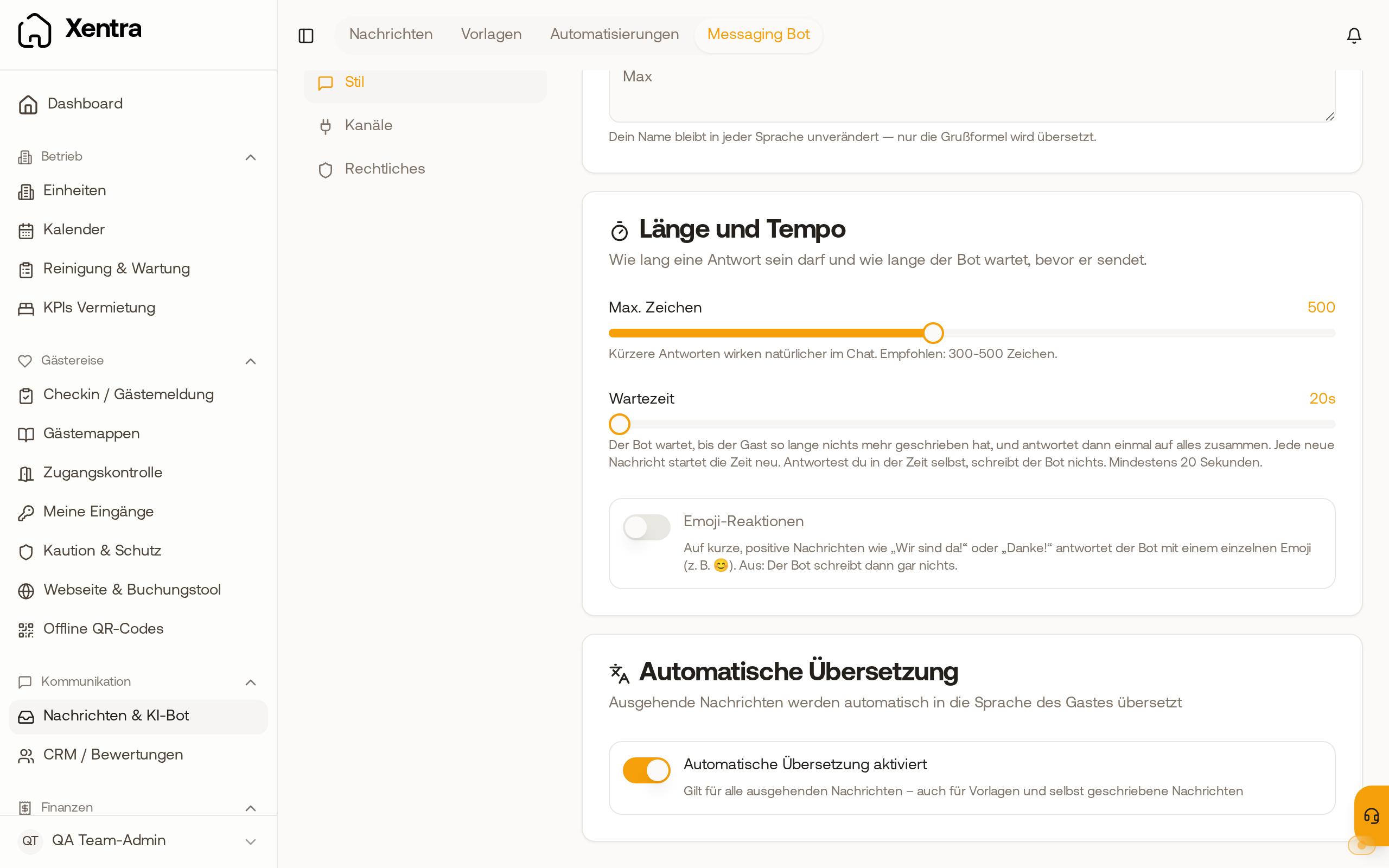 The “Emoji reactions” switch in the “Length and pace” card, off by default
In the inbox, above the message box, you see when the bot is up: “AI bot replies in 0:42” or “AI draft comes in 0:42”. With “Now” it reads immediately.
6. Channels and legal
Under Channels it says for each connection whether the bot replies there, and why not. It replies in the mailboxes of your PMS or channel manager (with Beds24 during the regular sync) and on WhatsApp via your own Meta account within the 24-hour window. It does not reply on SMS, Instagram, email or WhatsApp via QR pairing.
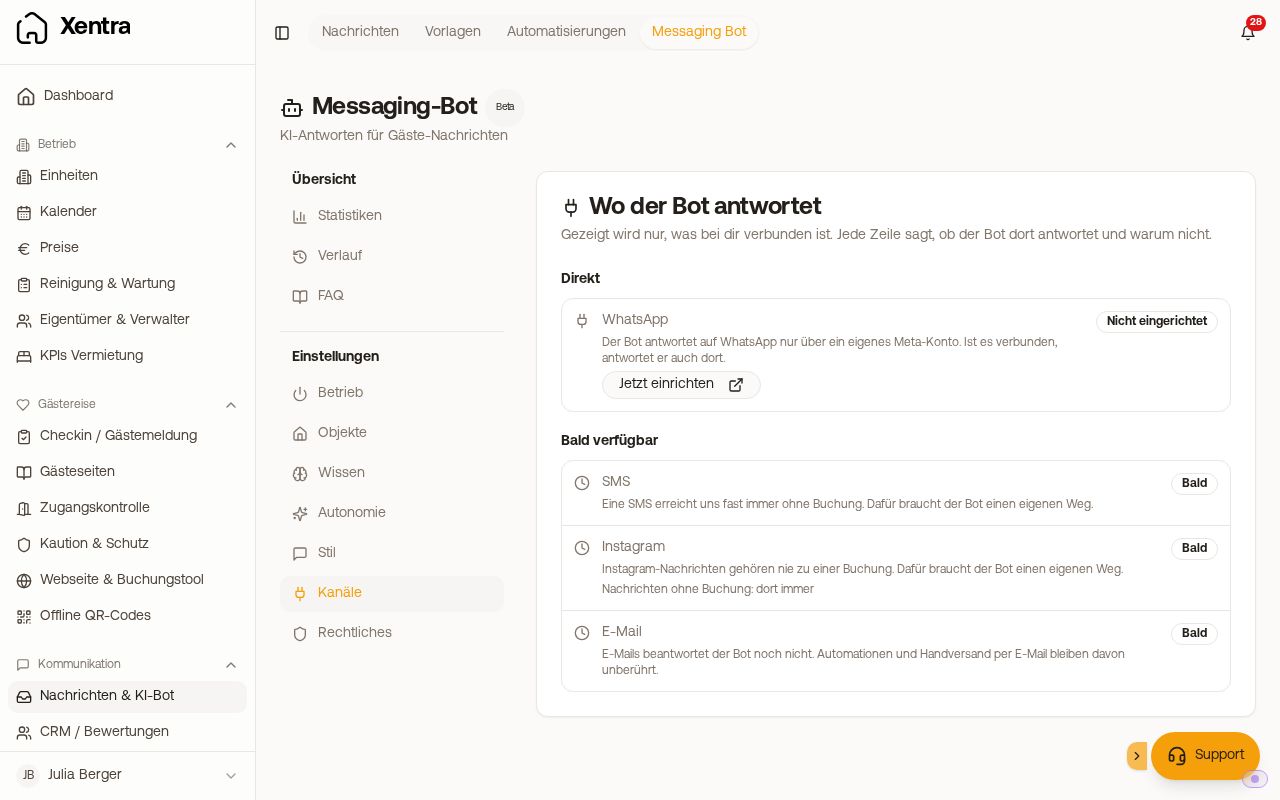 Channels: where the bot replies and why not
Under Legal you set the AI disclosure that every fully automatically sent reply gets: our sentence “This message was created automatically with AI.” after the reply, or your own sentence in front of it. Drafts you have released do not get it.
Handovers and team notes of the bot you can additionally send by webhook to Slack or another system (link “Set up webhook” under Autonomy).
Why a reply does not go out: see “Messaging Bot: why a reply was not sent”.