
Offline QR Codes
Fixed QR codes per unit for check-in, guest page, access, and WiFi that always lead to the current guest, with last name and arrival date prompt.
Updated on November 12, 2026
Under Guest Journey → Offline QR Codes (Open QR codes), you generate fixed QR codes per unit to print out, for example for the welcome folder or next to the door. The codes for check-in, guest page, and access never change. Anyone who scans them automatically lands on the page of the guest currently staying in the property. The WiFi code, on the other hand, contains the WiFi name and password itself: If you change the WiFi password, save it here again and print out the WiFi code and your welcome PDF again.
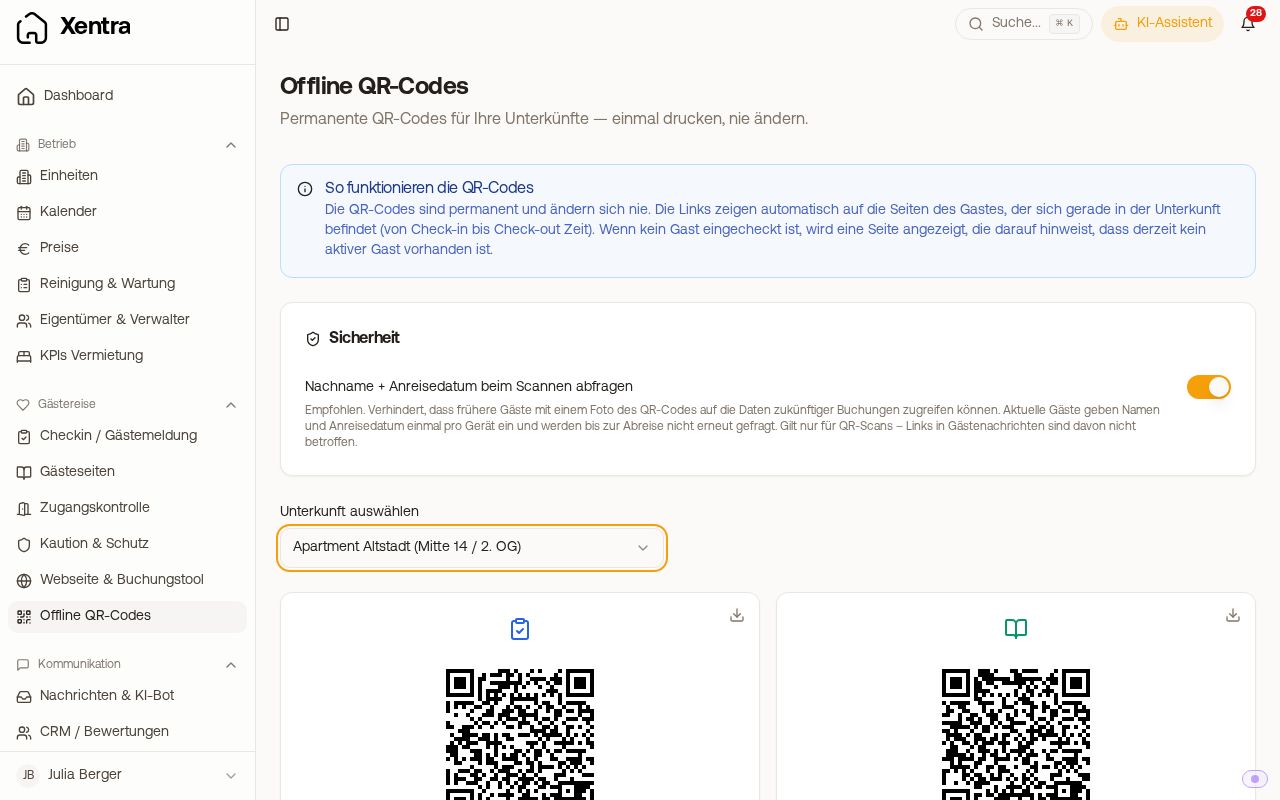 Offline QR Codes page with the QR codes of a unit and the security toggle
Guests can also print the guest guide themselves or save it offline. However, the QR code on such a printout belongs to that guest's booking; for a code that stays in the apartment, take the Guest page code from here. More on this in "Guest guide offline, on the home screen, and printed".
The four codes per unit
Select the unit at the top under Select property. Then there are:
| Code | Leads to | Requirement |
|---|---|---|
| Online Check-in | the check-in form of the current booking | Unit is assigned to a check-in template |
| Guest page | the guest page of the current booking | Unit is assigned to a guest guide |
| Access Control | the access link of the current booking | Unit has a lock or a door assigned |
| WiFi Access | directly to WiFi name and password, with Connect to Wi-Fi | WiFi name and password are stored (directly on this page under Save WiFi) |
If a code says ⚠ Not configured, the requirement is missing; Go to settings takes you there. Use the download icon to save an individual code as an image, without a label. With Print QR Codes, you print all codes at once, each with a name and short explanation underneath. Under Create Welcome PDF, you build a printable page with a photo, welcome text, selected QR codes, and languages. There, underneath each code it says where it leads, and in the Preview tab you can see the page before printing.
Which booking the code uses
Always the booking that is running in the unit on the day of the scan, from arrival to departure day. On turnover days, when one guest departs and the next arrives, the later arrival wins. Blocked dates do not count, only real bookings. Canceled bookings do not count either. If no booking is currently running, the guest sees No active guest.
The quick confirmation when scanning
In the Security box, you will find the toggle Ask for last name + arrival date when guests scan the QR (recommended, on by default). The code then asks the guest once per device for their last name and Arrival date. This prevents a previous guest with a photo of the code from opening the data of future guests. After that, the device will not ask again until departure. The WiFi code and links you send via message are not affected by this.
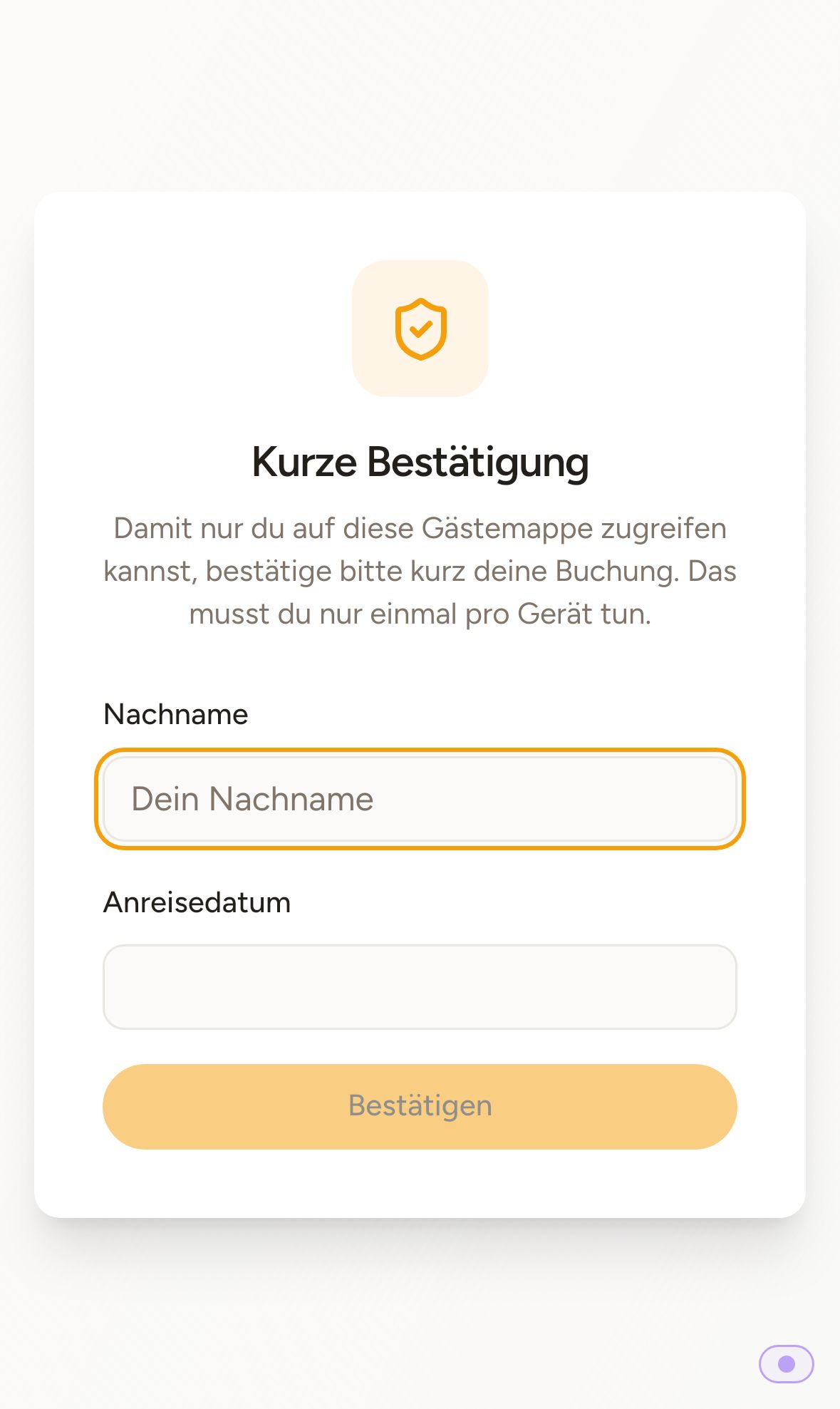 QR scan on mobile phone: Short confirmation with last name and arrival date
What the guest needs to enter:
- the last name as a separate word from the guest name of the booking (capitalization and accents do not matter; for "Familie Weber", that is "Weber"),
- the arrival date exactly as in the booking.
If something does not match, they see "Name or arrival date do not match." After several failed attempts, "Too many failed attempts" appears; the lock expires automatically after some time.
Testing correctly
- Make sure that a booking with a full guest name is running in the unit on the test day.
- Scan the code and enter the last name and arrival date exactly as listed in the booking.
- If it says "No active guest", no booking is running in this unit today; if it says "Not configured" on the QR page, the assignment to the template is missing.
- Test with a phone that does not have the Xentra app installed. If the app is installed, the link opens in the app, and you end up at the Xentra login. Your guests do not have the app and go directly to their page.