
Connect a LivionKey key cabinet
How to connect your LivionKey key cabinet: Xentra creates a PIN per booking for the compartment with the room key.
Updated on November 6, 2026
Xentra works with LivionKey key cabinets (for example LivionKey30). Each compartment holds the key of exactly one room. For every booking, Xentra creates a PIN that opens the compartment with the room key from check-in to check-out. LivionKey itself sends nothing to the guest; the guest receives the PIN from you via Xentra.
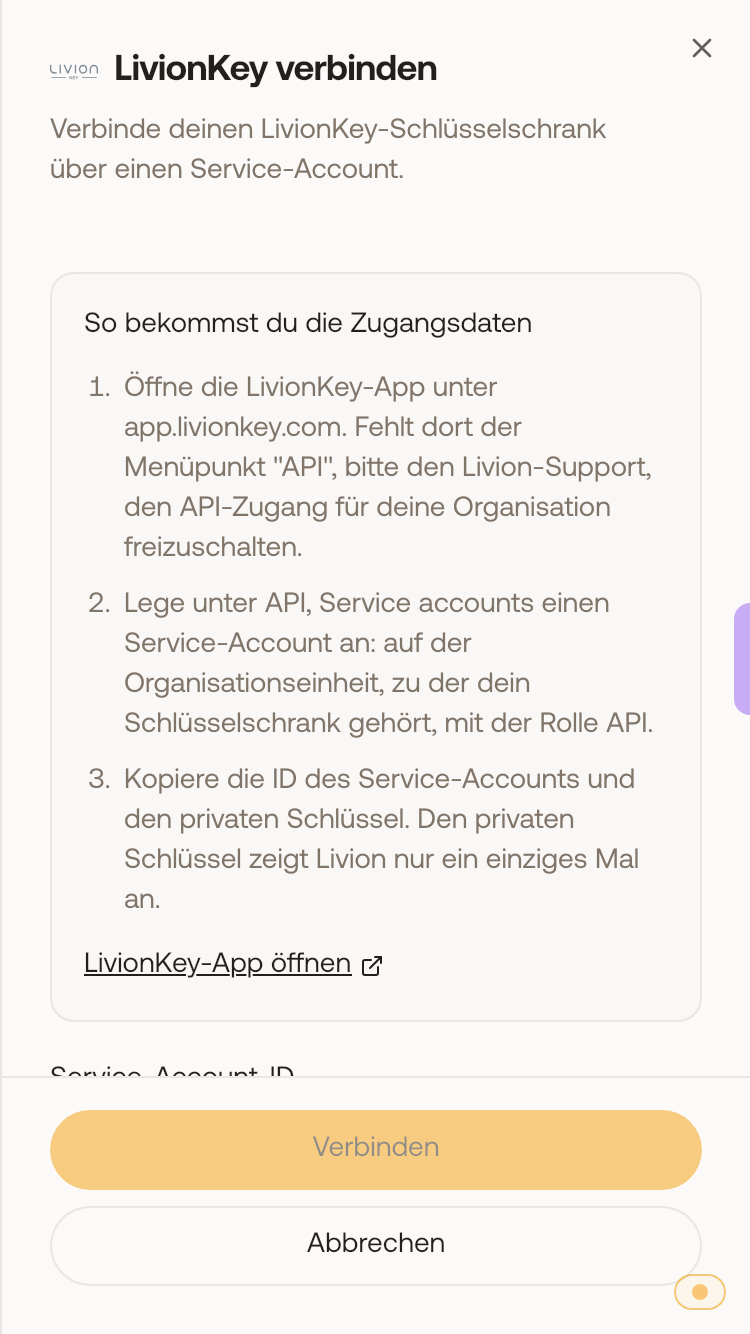
Get the access data in the LivionKey app
- Open the LivionKey app at app.livionkey.com. If the menu item API is missing there, ask Livion support to enable API access for your organisation.
- Under API, Service accounts, create a service account: on the organisational unit to which your key cabinet belongs, with the role API.
- Copy the ID of the service account and the private key. Livion shows the private key only once.
The key cabinet must be on the organisational unit on which you create the service account. If the service account sees no cabinet, Xentra aborts the connection with a note. The cabinet does not have to be online for connecting. Stored PINs also work without a connection; PINs that are created while the cabinet is offline arrive as soon as it is back online.
Connect in Xentra
Access Control, tab Settings, Add Provider, LivionKey. Enter the Service account ID and the private key (complete, with the lines BEGIN and END), optionally a connection name, then Connect.
Assign keys to rooms
Keys that are already in the cabinet appear as devices. Assign each one to exactly one room: a key always belongs to exactly one room. You add a new key with Add key at the key cabinets, for one room or for all rooms without a key. Xentra then shows you a Load PIN: enter it at the cabinet, the compartment opens, insert the key, close the compartment.
The PIN for the guest
In messages, on the guest page and in the bot's replies, the PIN appears via {{xentralivioncode}}. If the room also has a Nuki, Tedee or TTLock keypad, the guest gets the same code for both. For a booking across several rooms, each room gets its own code. If a booking is cancelled, moved or rebooked to another room, Xentra adjusts the PIN in the cabinet.