
Connect masunt key safe
With a masunt key safe, Xentra releases the room key per booking: Each booking gets its own PIN for the compartment, i…
Updated on November 12, 2026
With a masunt key safe, Xentra releases the room key per booking: Each booking gets its own PIN for the compartment that holds the unit's key.
What you need
- A masunt safe with masunt connect (PRO or PRO+), registered at connect.masunt.com.
- The API key of your masunt account: in connect.masunt.com under Api Key. Only a masunt admin can generate it, and there is one key per company.
How to connect masunt
- Open access control, Devices tab.
- Click Add provider and select masunt. If you do not have any devices yet, tap directly on the masunt tile.
- Paste the API key, enter a connection name if needed, and click Connect.
- Xentra creates each compartment of your safes as its own device. Assign each compartment to the unit whose key is inside. A compartment belongs to exactly one unit.
If Xentra reports that masunt rejects the API key, copy it again from connect.masunt.com. If it was re-generated there, only the new one is valid.
The PIN per booking
Each booking gets a PIN with 4 to 8 digits, which opens the compartment of its unit from check-in to check-out. These are the same digits as on the other code doors of the unit. Xentra handles cancellations and changed dates or units automatically. After the stay, the PIN is deactivated. You insert the PIN into messages using the placeholder {{xentramasuntcode}}. The guest can also open the compartment remotely via their access link.
Do not use masunt's own PMS connection at the same time, otherwise each guest will receive two PINs.
The compartment in the Devices tab
- "Open compartment" (with confirmation prompt) and "Check status". The safe only opens one compartment at a time; if another one is currently open, try again right away.
- "Show PINs" lists "Booking (Xentra)" and "Own PIN", with the labels "One-time" and "Not in the safe yet".
- "Add PIN" for custom PINs, for example for cleaning or owners: 4 to 8 digits, not already assigned in the same safe, "Valid from", "Valid until", and optionally "Single use".
- "Delete PIN": If you delete the PIN of a booking, the guest can no longer access the key.
The times apply in the Safe time zone. If Xentra cannot assign it, it warns you: Set the time zone in connect.masunt.com and sync the devices. In the Log, you see "PIN at the safe", "Card at the safe", "Remote opening", "Wrong or expired PIN", and "Alarm at the safe".
Team members open compartments and manage PINs only for the compartments of their units; the connection itself belongs to you.
Change access, second account, disconnect
You enter a new API key under Settings via the pencil icon on the masunt connection ("Change masunt access"); compartments, assignments, and PINs remain intact. You connect a second account with "Add masunt account". When disconnecting, Xentra deactivates the booking PINs. If masunt is currently unreachable, they remain valid until the end of the respective stay; deactivate them in connect.masunt.com if needed.
masunt is available in the Pro plan and during the trial phase.
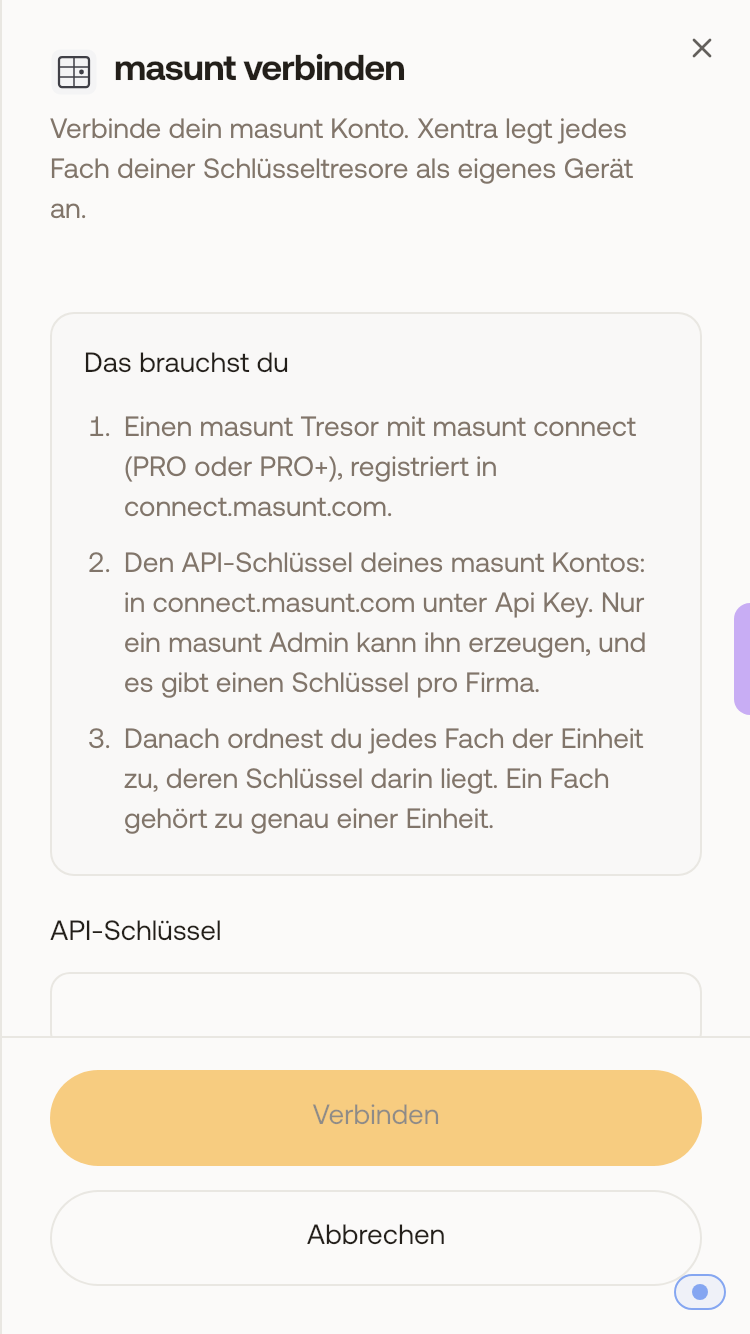 The Connect masunt window with the requirements and the field for the API key.