
Prioritization: categories and urgency levels in the inbox
The bot sorts incoming messages into categories, you set how urgent each category is, and the list is sorted accordingly.
Updated on October 19, 2026
Prioritization & categories
You open the settings for this in the browser via the gear icon at the top of the conversation list of the inbox, section Prioritization (Open prioritization). You and your team admin see the gear icon, other team members only with the right “Messaging settings”. This page does not exist in the app.
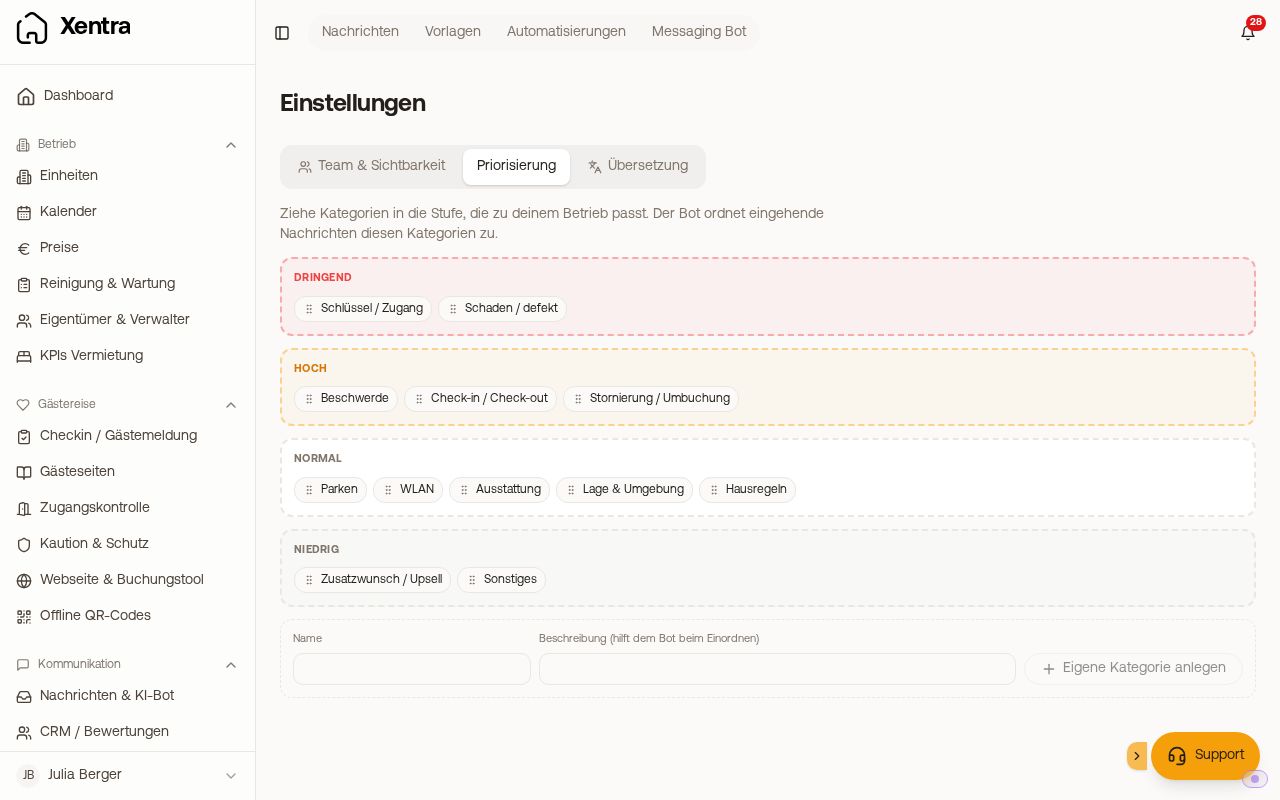 Prioritization with the four levels and the categories in them
Categories
If your messaging bot is switched on, it automatically assigns every incoming guest message to a category. This costs no additional AI credits. Without the bot, Xentra itself only recognises the most urgent cases (keys and access, damages, cancellations) by keywords in the guest's message.
Included are: Keys / access · Damage / defect · Complaint · Check-in / check-out · Cancellation / rebooking · Parking · Wi-Fi · Amenities · Location & surroundings · House rules · Extra request / upsell · Other.
- Create your own category: name plus description. The description goes to the bot as a hint and decides what it sorts into that category. So write in it how these cases can be recognised.
- The category appears as a chip in the header of a conversation. If the bot got it wrong, you correct it there with one click. Your choice then always applies.
- A click on a category in the settings shows the last 20 conversations that were sorted into it. This way you check whether the bot separates things sensibly.
The categories are at the same time the FAQ categories of the bot. If you create your own, it is automatically available there.
Urgency levels
You drag each category via drag & drop into one of four levels: Urgent · High · Normal · Low. Out of the box, “Keys / access” and “Damage / defect” are urgent; “Complaint”, “Check-in / check-out” and “Cancellation / rebooking” are high; “Extra request / upsell” and “Other” are low; the rest is normal.
The actual urgency of a conversation results from category plus situation, and it is only raised when the guest is really waiting for a reply:
- Guest is on site or arrival in under 48 hours → one level higher.
- Unanswered for a long time (the guest's question is older than 5 days) → at least High, but never automatically “Urgent”.
- If only an automation wrote last, nothing is raised.
The reason a conversation was raised is shown on it (“Guest on site”, “Arrival < 48h”, “Unanswered for a long time”).
Sorting the list afterwards
On the right in the bar above the list, you switch between Newest and By priority with the sort icon. In the priority view, the list is divided into sections per level; “Urgent” and “High” carry a badge. The choice is saved.
What is not set here
You set the bot's reply mode, tone, opening hours and FAQs on the Bot page. Next to them, the messaging settings only contain Team & visibility (see “Inbox for the team”) and Translation (see “Translation in the inbox”).