
Inbox: status, filters, follow-up and overview
Status, inbox and outbox, filters by property, portal and channel, follow-ups and overview: how to keep your inbox under control.
Updated on November 6, 2026
Above the conversation list in the inbox there is a bar that determines what you see. Everything only affects the list. Nothing is deleted.
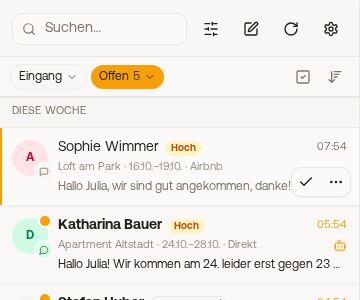 The bar above the conversation list with inbound, status field and icons
The status field
It shows for example "Open". A click opens the selection. Behind each status is how many conversations it currently holds:
- Open: everything nobody has dealt with yet.
- Waiting for a reply: only conversations in which a guest is waiting for an answer. An automatic message does not count as an answer. The best view for everyday use.
- Later: conversations with a follow-up (see below).
- Done: completed conversations. If the guest writes again, the conversation is immediately open again.
- All
Inbound, outbound or both
The field to the left of it sets what the list is sorted by and which message is shown as the preview:
- Inbound: by the guest's last message. Your own reply does not move anything.
- Outbound: by what was sent last, including automations.
- Both: by the last message, regardless of who sent it.
Filters
The slider icon next to the search opens the filters: Property, Portal and Channel (for example only WhatsApp or only Instagram), plus Bot hand-overs (only conversations that the bot handed over to you) and Unassigned with All, Only these (only messages without a booking) or Hide. Xentra remembers your choice for "Unassigned". With "Reset filters" everything is open again.
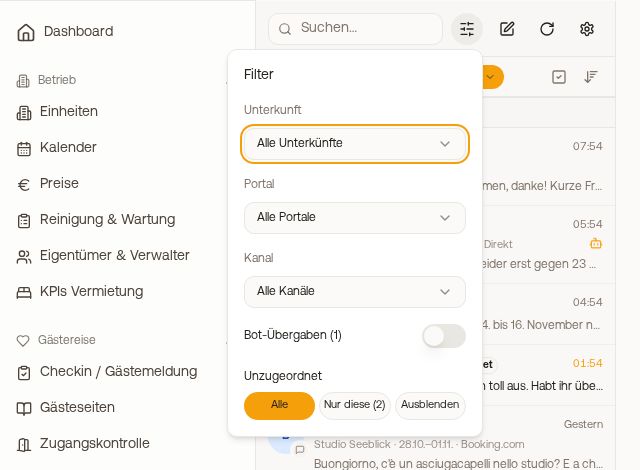 The filters for property, portal, channel, bot hand-overs and unassigned
On the right of the bar, you also switch between Newest and By priority (see "Prioritization: categories and urgency levels"), and start multi-select with "Select" (see "Tidying up the inbox"). In a team, a field for For me, Unassigned, one person or All is added on the left.
Follow-up: put a conversation aside for later
Do you want to deal with a conversation only tomorrow, or after departure? Hover over the row in the list, open the three-dot menu and choose "Later", or click the small arrow next to "Done" at the top of the open conversation and then "Later". The options are:
- This evening (6 pm), Tomorrow morning (8 am), In 3 days (8 am)
- After check-out (12 noon on the departure day, handy for asking for a review)
- or a date of your choice
The conversation then moves to "Later" and comes back to "Open" by itself at the chosen time. If the guest writes beforehand, it is back immediately. At the top of the conversation it says "Follow-up: back in "Open" on …". With "Cancel" you remove it.
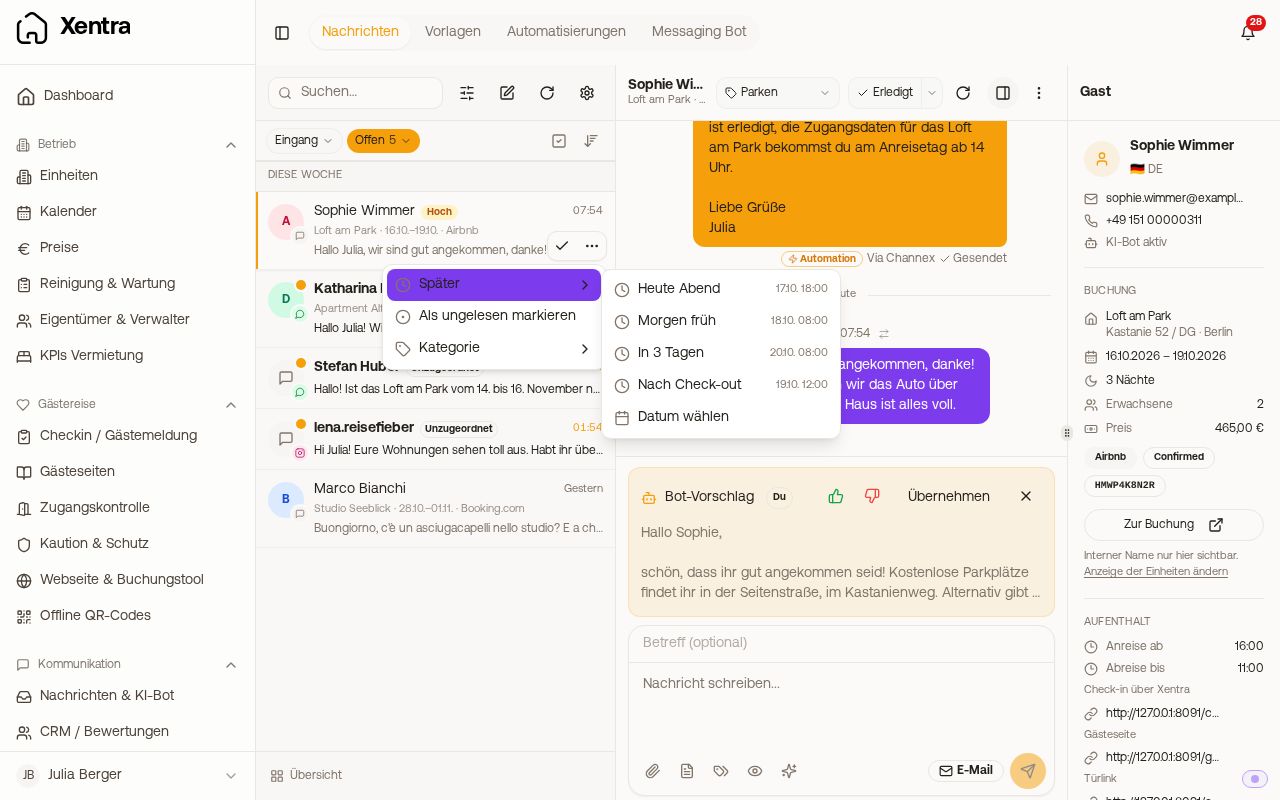 The follow-up menu with the times
Other actions per conversation
On the right of every row there are a tick (done) and the three-dot menu: always on phone and tablet, on a computer as soon as you hover over the row. In the three-dot menu you find Later, Mark as unread, Category and, in a team, Assign to / Remove assignment. In the open conversation, the category, the "Done" button and, in the three-dot menu, among other things "Forward" are at the top. In the sidebar on the right: "Go to booking" and, if the bot replies for this unit, the row to pause the bot.
Message on the wrong booking
If a message from your guest ended up on the wrong booking, open the conversation and click the small arrow icon next to the time on the message ("Move to another booking"). Then choose the right booking. This only works with messages from the guest, not with your own. Detaching a message from a booking without assigning it to another one is not possible. "Assign to booking" only exists for conversations without a booking.
The overview
At the very bottom left under the list, "Overview" leads back to the start view of the inbox. It shows which channels run for you (portals/PMS, email, WhatsApp, SMS, Instagram) with a link to set them up, the Team card with the open conversations per person, and a QR code with which you get the inbox onto your phone. In a team, next to "Overview", are the avatars of your colleagues. Green means the person is currently in the messages area. A click on an avatar shows only that person's conversations.
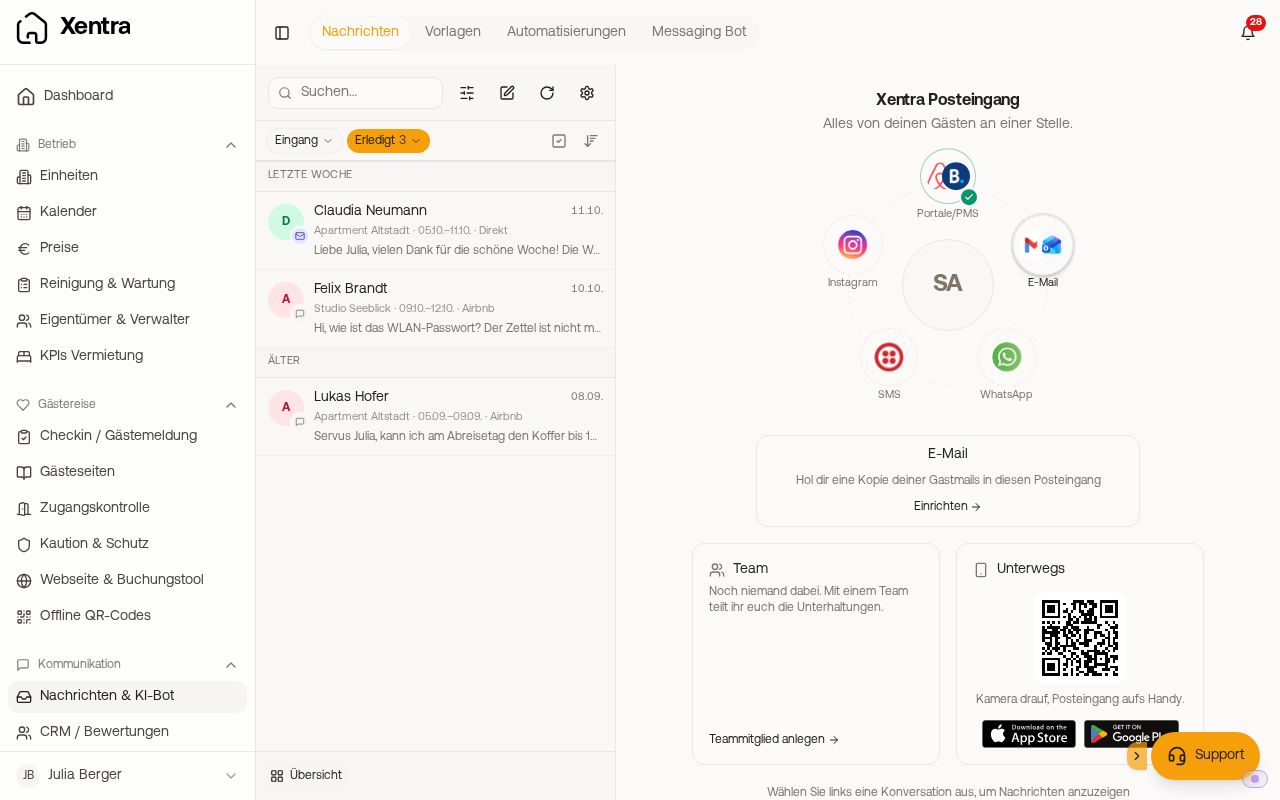 The inbox overview with channels, team and QR code
Search
The search field at the top finds guest name, unit, booking number, phone number and message text. From 3 characters on, it searches all conversations in your account, including older ones that are not loaded yet.