
Dark mode
Switch between light and dark design and what always stays light for guests.
Updated on October 19, 2026
Switching
Bottom left in the sidebar, click your name, then “Switch to dark mode” or “Switch to light mode”. The sun or moon icon sits on this menu entry; there is no separate switch in the sidebar.
If you make no choice of your own, Xentra follows your device's setting (light or dark).
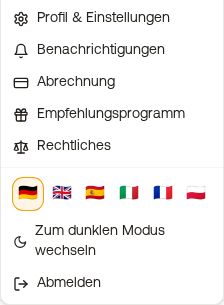 Account menu with “Switch to dark mode”
What always stays light
Everything your guests see or that is printed is always light, regardless of your setting: guest guide, online check-in, booking tool, your website and its previews as well as invoices and PDFs. A guest invoice is therefore printed in light colours even when your device runs in dark mode.
Something is hard to read in dark design?
Text that is dark on a dark background, or an invisible logo, is a bug that we will fix. Send us a screenshot of the spot in the support chat. Until then, it helps to briefly switch to light mode.