
Color of booking tool and website: Logo color and petrol
New booking tools and websites start in the color of your logo or in petrol. Here is how you change the primary color under Appearance.
Updated on November 9, 2026
Color of booking tool and website
New booking tools, availability calendars, and websites start in the color of your logo. Xentra takes the strongest color from the logo in your profile and darkens it enough so that white text remains easy to read on it. If you do not have a logo or if it is black and white, they start in a calm petrol green.
Existing booking tools and websites keep their color.
Change color
Open booking tool, tab Settings, section Appearance. Under Suggestions, a click on "From your logo" or "Petrol (default)" sets the primary color. You enter any other color under Primary Color. Then Save.
If the Appearance section is locked with a padlock, the booking tool adopts the settings from "All booking tools". You then click "Customize for this booking tool" above the section or change the color for all booking tools with "Edit there".
The logo color is also available as a suggestion in the design settings of your website.
Dark design
If your booking tool matches a dark website, enter a dark color under Background and a light color under Text color in the Appearance section, then click Save. All areas will then follow your colors: search bar, calendar, drop-down lists, guest selector, accommodation cards, detail view, and checkout, on mobile and computer. If your text color is not easily readable on an area, the booking tool automatically uses a lighter font there. For the search bar that you embed on your website using the JS Snippet, you also set the Search bar color to dark; its calendar and guest selector will then also be dark. Light designs look as before.
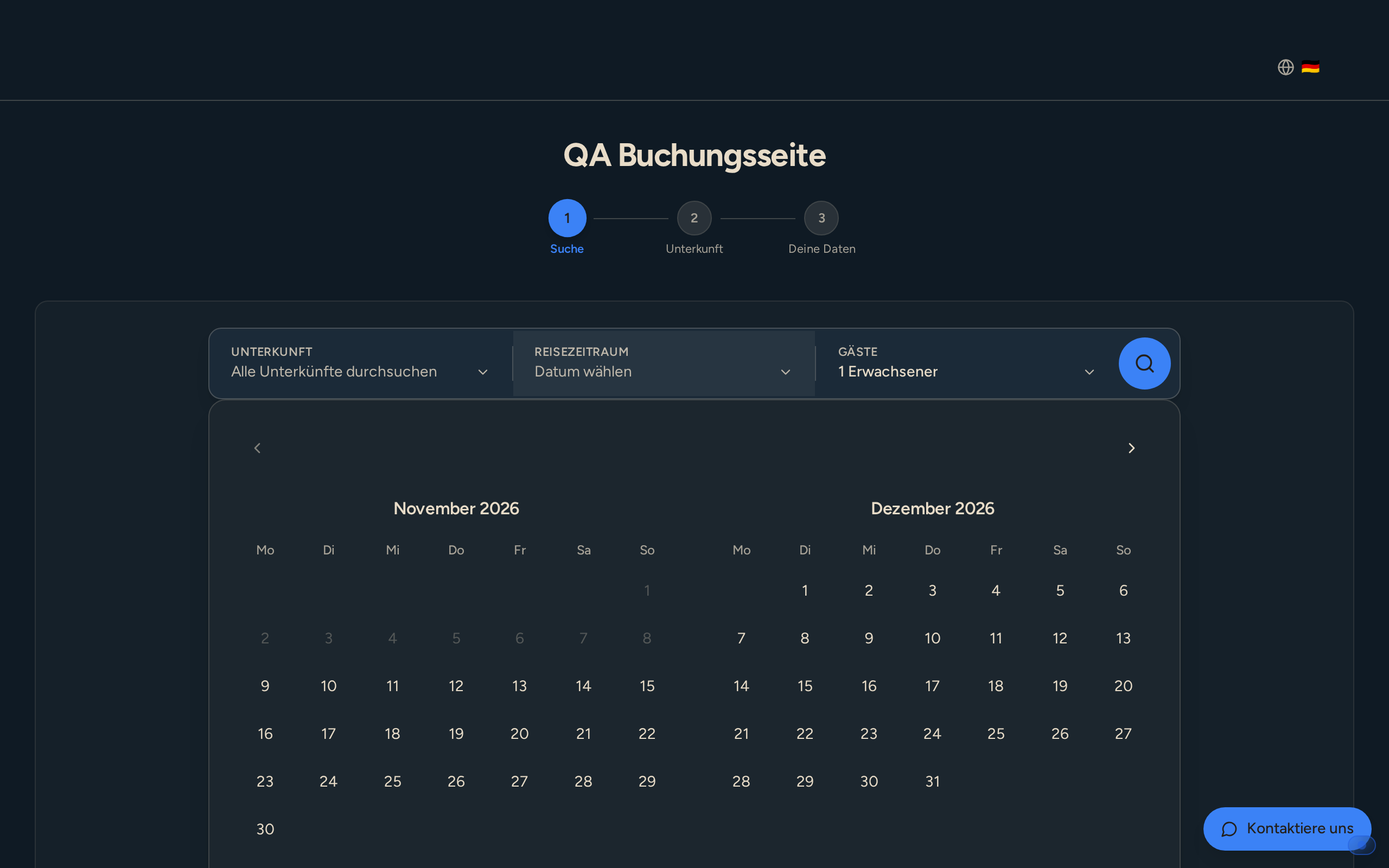 Booking tool with dark background and light font: search bar and calendar follow your own colors