
Website: Pages for Environment, Food & drink, and longer stays
Create pages like Environment or Food & drink using templates: AI searches for real places near your accommodations and shows them on a map.
Updated on November 10, 2026
In addition to the home page and the pages of your accommodations, you can give your website additional pages. Ready-made templates are available for three common topics: Environment, Food & drink, and Longer stays. There is also the Empty page for your own content, for example About us.
How to create a page
- Open Website, Settings, Pages. Under More pages, you will find the three templates as cards. You can also get there via Extend website on the overview or via Add page in the editor.
- Select the template and adjust the Page title if needed.
- Tap Add page. The new page opens in the editor.
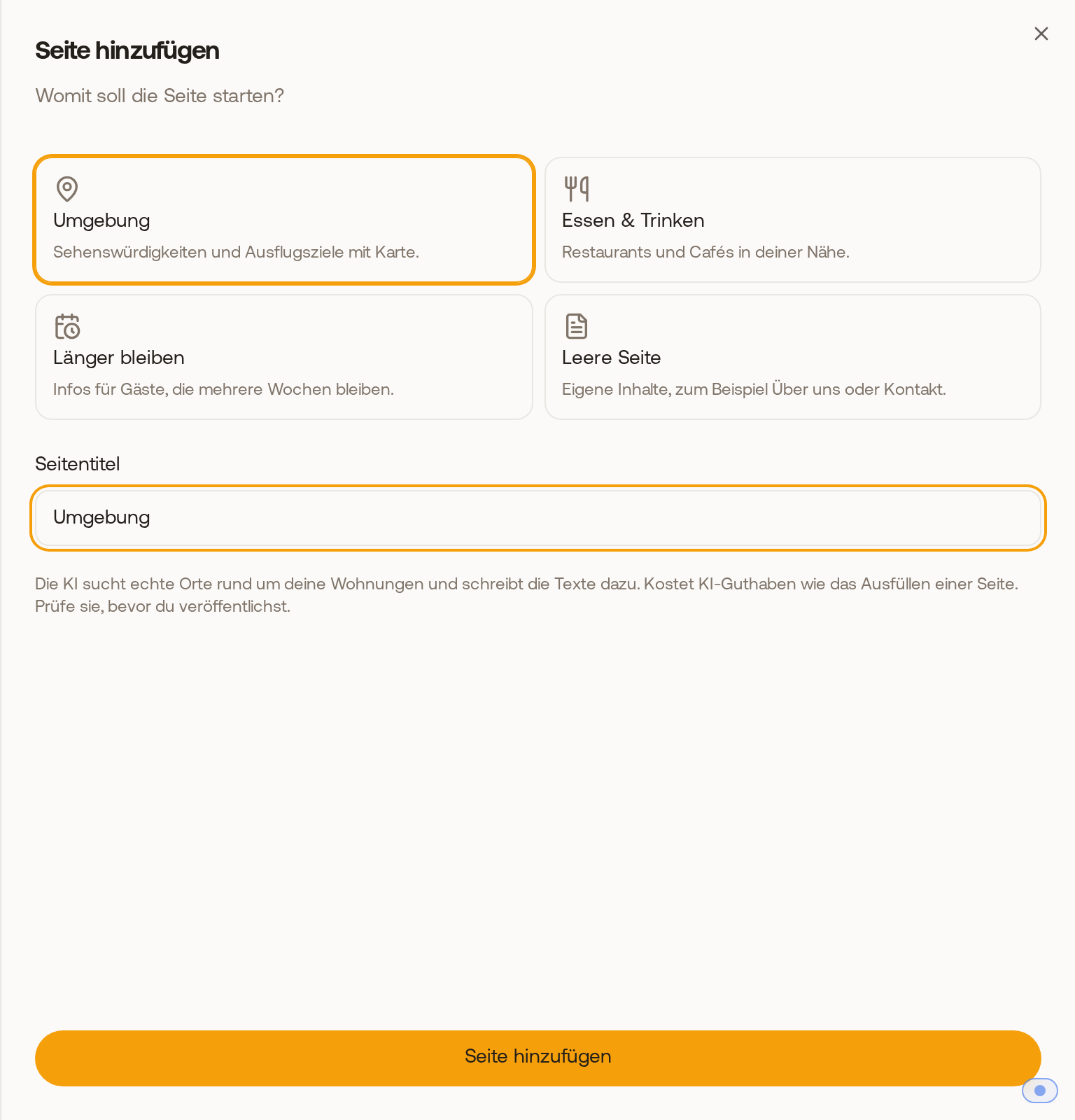 In the "Add page" window you select Environment, Food & drink, Longer stays, or an empty page.
What the AI writes for you
For Environment and Food & drink, the AI searches for real places around your accommodations, such as restaurants, cafes, sights, shopping, parks, and stops, and writes the texts for them. The page gets a hero section, an introductory text, a section for each accommodation with a photo, text, and button to the accommodation (for room categories, one per category, just like on the accommodation card of your website), a map, and a booking call-to-action. Longer stays writes texts for guests staying several weeks based on the data of your accommodations, without a place search.
This usually takes one to three minutes. During this time, the editor shows "Writing the texts …" and the page is locked. In the meantime, you can continue working on other pages; the page fills up automatically. It costs AI credits just like filling out a page. The street of your accommodations is not included in the texts, only the city and neighborhood. Check the texts before you publish.
For the AI to find places, at least one accommodation needs an address or a location (under Units). An accommodation without an address receives a general text. If your accommodations are located in multiple places, more than about 10 km apart, Xentra asks which place the page should be about. A page holds a maximum of 12 accommodations.
If the place search did not work, the texts only talk about your accommodations. With Search places again, you start a new attempt that costs no additional credits; what you have already changed yourself remains. If the texts could not be created at all, choose Try again or Continue without AI texts and fill in the sections yourself.
The map with the places
The map shows your accommodations with a house icon and the found places as numbered points, with a legend below sorted by type of place. Like every map on your website, it only loads when the visitor clicks Load map. In the Map section, under Places on the map, you see all places and remove individual ones with the cross.
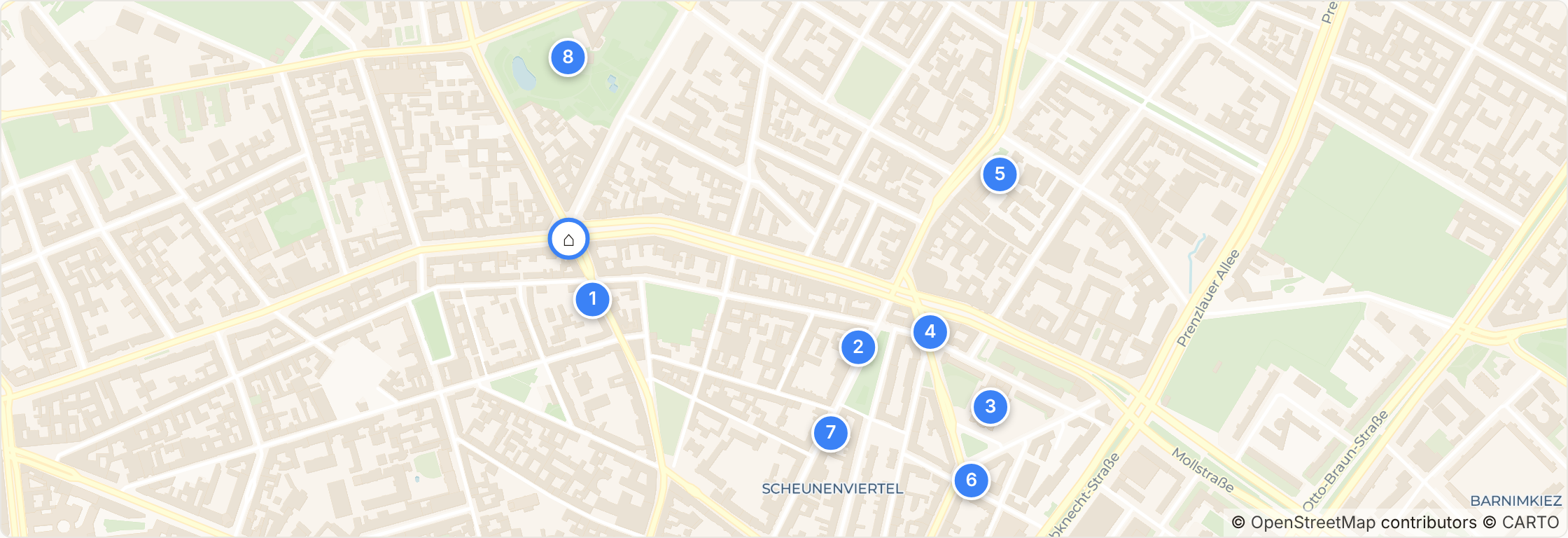 The map of an environment page: the house icon shows your accommodation, the numbers show the places from the legend.
The page list
Under Pages of your website, you see the home page, the row Unit pages (created automatically; you edit photos and texts under your units), and your additional pages below. You change the order using the arrows. Guests only see a new page once you publish your website.
How to otherwise edit pages and blocks is explained in "Website builder: Pages, blocks, photos, and legal information".