
Connecting SwitchBot
Connect SwitchBot Lock and Bot with token and secret key, switch on the cloud service and what the guest sees in the access link.
Updated on November 4, 2026
With SwitchBot, your guests open the door via their access link: a SwitchBot Lock unlocks, a SwitchBot Bot presses for example the door opener button of an intercom.
Requirements
- Your devices are set up in the SwitchBot app and connected to the internet via a SwitchBot Hub.
- The cloud service is switched on for each device: SwitchBot app → device → settings → cloud service.
Connecting
- In the SwitchBot app, under Profile → Settings → Developer options, copy the token and the secret key.
- In Xentra, under Access Control → Settings tab → Add Provider → SwitchBot, enter both values and connect.
- In the Devices tab, assign each device to its unit.
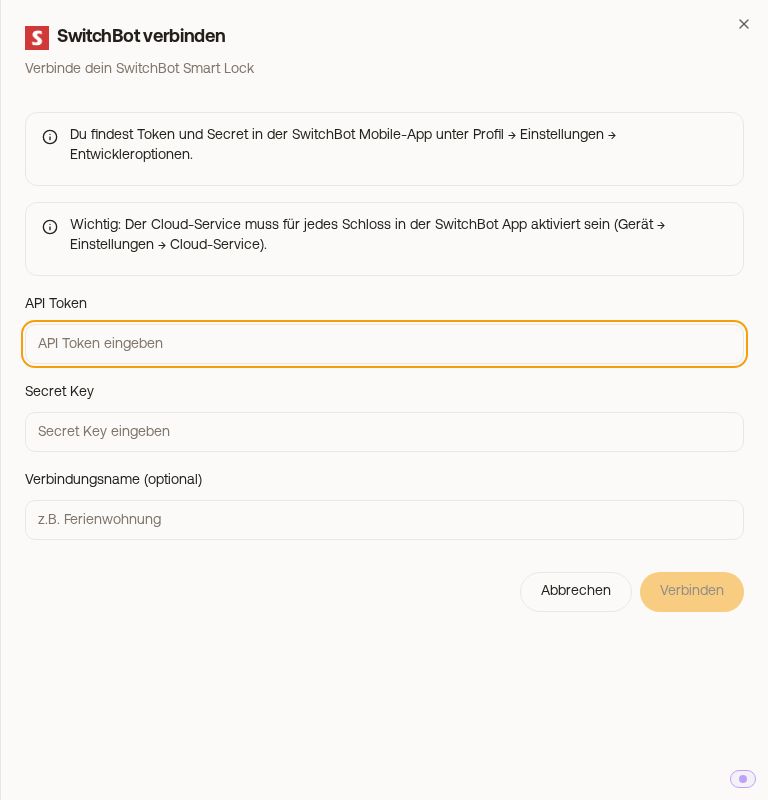 Connect SwitchBot window with API token and secret key
What the guest sees
- SwitchBot Lock: open, unlock and lock, plus battery and lock status. You set which of these are visible in the access link under Settings → Access link.
- SwitchBot Bot: only one button that has the bot press. There is no lock option here, because the bot only presses.
Lock status: The access link shows what SwitchBot reports for the bolt, not whether the door is open. If the lock reports "locked", the link shows Locked, even if the door is open, for example if the bolt was extended while the door was open or the lock is not calibrated. If SwitchBot only reports the latch as locked, the link shows Unlatched. If the status is wrong, check it first in the SwitchBot app and recalibrate the lock there. You can hide the status under Settings → Access link.
Xentra does not create door codes per booking for SwitchBot. If you need a code for a keypad, enter it as your own code on the unit and send it with {{key_code}}.
If a device does not appear after connecting, check the device's cloud service in the SwitchBot app and then click Sync Devices.