
Connect Claude or ChatGPT to Xentra (MCP)
How to connect an AI assistant like Claude or ChatGPT to your Xentra account, what it can read and change, and how to disconnect it.
Updated on November 12, 2026
Connect Claude or ChatGPT to Xentra
Via Xentra's MCP server, you connect an AI assistant directly to your account. Then you ask it in plain language, for example: "List all arrivals for the next 7 days per apartment with number of guests." The assistant gets the data itself from Xentra.
Server URL: https://mcp.myxentra.com/mcp
Everything the assistant can do and the instructions at a glance: Xentra MCP Server.
You can also find the address and brief instructions under Open API / MCP in the box "Connect AI assistants (MCP)".
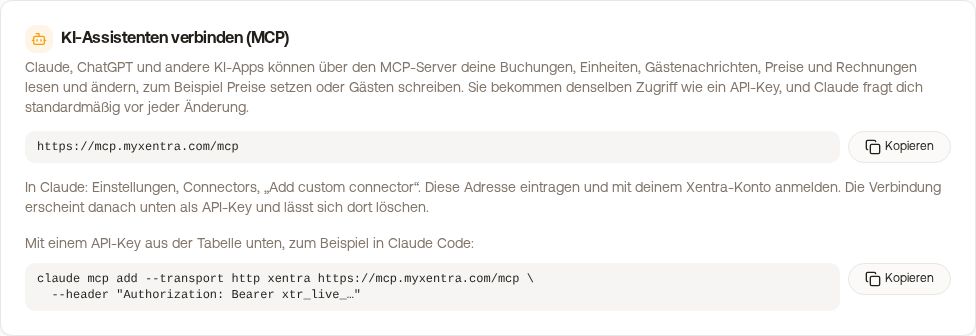 The "Connect AI assistants (MCP)" box on the API / MCP page
A prerequisite is an active Xentra subscription. Only your main account or a team admin can allow the connection; a team admin connects the account they are currently working in, not their own.
ChatGPT
- In ChatGPT open Settings → Apps & Connectors → Advanced settings and turn on Developer Mode. This is only available in paid ChatGPT plans.
- Click Create, enter name Xentra, enter the server URL from above, and select OAuth as authentication.
- Log in with your Xentra login, select the permissions, and click Allow. In a new chat, you then select Xentra.
Claude
- In Claude (web, desktop, or mobile) open Settings → Connectors → Add custom connector.
- Enter name Xentra and the server URL, then click Add and Connect.
- Log in with your Xentra login, select the permissions, and click Allow. Then turn on Xentra in the chat via the tools menu.
In Claude Team or Enterprise, an owner adds the connector once in the organization settings; each member then logs in with their own Xentra login. You connect programs like Claude Code with an API key instead of logging in; the box on the API / MCP page shows the ready-made command.
What the assistant can read and change
Which of these it is actually allowed to do, you set with the permissions when connecting (see below).
- Read: Bookings with apartment, arrival, departure, and guest count, door codes as well as check-in and guest guide links, units, prices and minimum stay, availability, guest messages, guest invoices, insurance, webhooks, and your guest guides with all sections, text, and design.
- Change: Create, modify, cancel, and delete bookings and blocks, create, edit, and delete units, set prices and minimum stay, message guests, create, modify, and delete webhooks, report an insurance claim, create and edit guest guides in the new design (with images and custom CSS), see Editing guest guide with AI (MCP).
When clicking Allow, Xentra shows the same permission selection as when creating an API key, initially everything is off: per area Off, Read, or Read and write (bookings and calendar, units and prices, guest guides, set up webhooks), plus individual checkboxes for "Guest data in bookings", "Guest messages", "Read invoices", and Access (door code, door links, check-in link, Wi-Fi password). The assistant only receives the actions for which the connection has permissions. It only sees door codes, guest links, and Wi-Fi with Access, guest names and contact details only with "Guest data in bookings". For automated agents like n8n or Zapier that act without asking, turn on only the areas they need, and write permissions only where necessary; in the chat, only confirm actions you really want. All permissions in detail: see API key: Permissions, validity, rotation. A cancellation via the assistant does not trigger an automatic refund, you issue that in Xentra if needed.
Evaluations such as revenue and occupancy, cleaning tasks, tourist tax, and guest registration forms are not possible via the assistant. Each connection is its own key with its own per-minute limit, so it does not share quota with your other API keys, such as the one for n8n; see Data API: Limits, 403 ban, and syncing correctly. Modifying actions are additionally limited: a maximum of 30 changes in 10 minutes (bookings, units, prices, messages, webhooks), the actions for guest guides have their own budget of 200. Above that, Xentra rejects the next change with error 429; reading does not count toward this limit.
Disconnect connection
Each connection appears as its own key, for example "ChatGPT (MCP)", under API / MCP in the API keys tab (also under Settings → API / MCP). Its permissions are also listed there. If you delete or revoke the key, the assistant is disconnected immediately. To change permissions, connect again afterwards; a connection cannot be rotated.