
Webhooks: Events, fields, and signature
Set up webhooks in Xentra: all events, field groups, HMAC signature, trial, logs, resending, automatic deactivation, and bot handovers to Slack.
Updated on November 12, 2026
With a webhook, Xentra calls your URL as soon as something happens, without any polling. Setup: Open API / MCP, Webhooks tab, Add. Enter name and URL, select events and fields, Create.
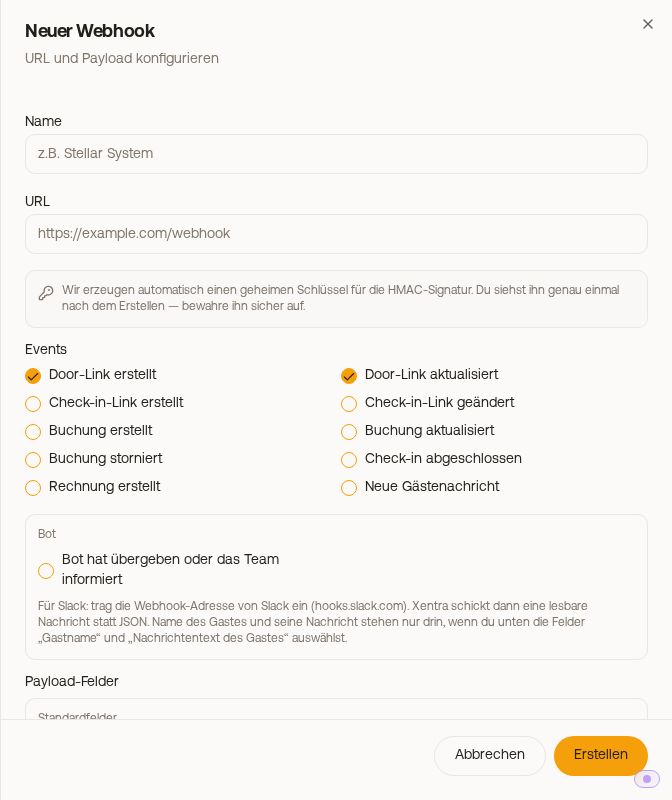 The "New webhook" editor with event selection
Events
| Event in editor | Technical name | When |
|---|---|---|
| Door link created / updated | door_link_created / door_link_updated |
Access link created or modified |
| Check-in link created / updated | checkin_link_created / checkin_link_updated |
Check-in link created or modified; for multi-room reservations only once, for the main room |
| Booking created | booking_created |
New booking received (in real time; bulk imports and blocks do not trigger it) |
| Booking updated | booking_updated |
Important booking data has changed |
| Booking cancelled | booking_cancelled |
Booking cancelled |
| Check-in completed | checkin_completed |
Guest completed online check-in |
| Invoice created | invoice_created |
Guest invoice finally created (drafts excluded) |
| Guest message received | message_received |
A guest wrote to you, on any channel; new messages only |
| Bot handed over or informed the team (section Bot) | bot_handover |
See below |
There is no event for the guest guide; fetch the link via the API if needed.
Fields
For each webhook, choose what is sent under Payload fields, sorted into groups:
- Standard fields: Booking number, platform booking number, door link, check-in link, Guest name, arrival, departure, apartment, email, phone, "Booked at (by the guest)" (
booked_at), and "Created in Xentra at" (created_at) - Check-in data: Adults, children, infants, language, all guests with documents, arrival and departure time, custom check-in fields, consents
- Full guest data: Everything from check-in in a single field, including identity verification result (if active)
- Billing data: Guest address, different billing address from check-in, company, tax ID
- Booking financials: Total amount, currency, payment status, payment method, booking source, tourist tax
- Invoice (only for "Invoice created"): Buyer data and line items of the issued invoice
- Messages: Guest message text, translation, sender, attachments
What a guest wrote is only included if you select "Guest message text".
If a program creates or modifies a webhook via the API, its key needs permissions for the selected fields and events: booking fields Bookings and calendar: Read, guest name, contact and guest data "Guest data in bookings", door and check-in link Access, message fields and "Guest message received" "Messages to guests: Read", billing fields and "Invoice created" "Read invoices". If a permission is missing, the API responds with 403 and lists the fields. This does not affect webhooks you create yourself in the app. There is no preset for Lexoffice; you select the fields yourself.
Check signature
Upon creation, Xentra generates a secret key and displays it exactly once. Every delivery carries the header X-Webhook-Signature: sha256=<hex>, an HMAC-SHA256 of the raw body using this key. Check it before reacting. Ready to use code examples for Node, PHP, and Python are on the API / MCP page under "Verifying webhook signatures". If you lose the key, use "Rotate secret" to generate a new one; the old key immediately becomes invalid.
In the list: test, logs, resend
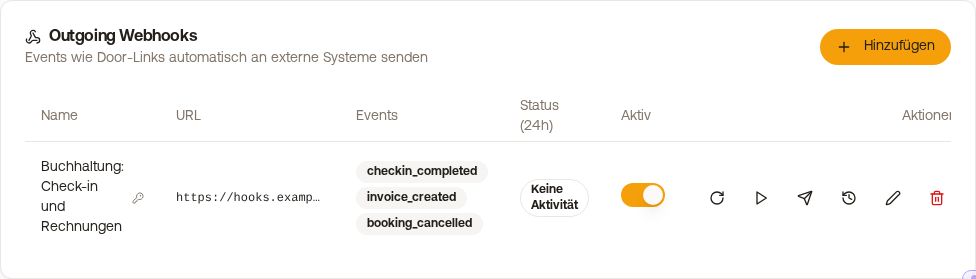 A webhook in the list with its actions
- Trial (paper plane) sends a test delivery with your exact fields to your URL. This way you see the structure in your target system instead of guessing.
- Logs (clock) shows the last 30 deliveries with status and HTTP response; you can resend an individual delivery there using "Resend".
- Sync all data (play) sends all existing bookings and links to your URL once, which is practical when starting a new integration.
- Use the Active switch to pause a webhook.
If your URL does not respond or responds with an error, Xentra retries delivery several times with increasing intervals. After 20 consecutive failed deliveries, Xentra stops the webhook and displays a notice; check the URL and recipient, then click "Reactivate".
Bot handovers as a webhook, including to Slack
The event "Bot handed over or informed the team" arrives at the same moment as the bell notification: when the bot hands over a conversation to you, and when it responded itself and assured the guest that the team will be informed. If you enter Slack's webhook address (hooks.slack.com) as the URL, Xentra sends a readable message in your language instead of JSON. The guest's name and message are only included if you select "Guest name" and "Guest message text". In the bot settings under Autonomy, a link leads directly to webhooks.
Tip: Webhook for real time plus occasional reconciliation via the API is the most robust combination, see Data API: Limits, 403 blocks and proper syncing.